Showing posts with label many workarounds. Show all posts

Monday, October 22, 2018

Eesti ID-kaart ja Knoppix 7.2

Algupäraselt on blogipostitus kirjutatud käigupealt, mistõttu on seesinane küljendamata kujul. Artikkel on mõeldud kõigile, kes oskavad natuke terminali (käsurida) kasutada.

Kindlasti võis midagi kahe silma vahele jääda, kuid suures osas peaks andmed paika pidama.


Intro

Ehk kuidas saada tööle panka sisselogimiseks vajalik ID-kaardi tarkvara Knoppixi 7.2 Live-CD-le, ja millised on selleks vajalikud .deb-paketid. Kuna Knoppix on Debiani-põhine, on artiklis väljatoodud pakettide arv minimaalne ja vaid antud Knoppixi-versiooni jaoks, kuid võib kasuks tulla ka teiste Debiani- kui ka mitte-Debiani-põhiste distrodega opereerimisel.

Sissejuhatus

Niisiis tekkis mullegi lõpuks permanentne ID-kaardilugeja (OmniKey CardMan 1021) ja võib-olla ka võimalus seda kasutada, et sisse logida panka. Nimelt otsustas minu pank koodikaardi võimaluse (need, mis numbritega) ära kaotada. Ainult et mul on Windows XP, ning see pole ID-kaardi tarkvara poolt enam toetatud.

Estobuntu plaadile keevitamine ei aidanud, sest selle versioon on samuti aegunud ja uut pole välja lastud. Kui seda reklaamitakse kui eestikeelset distrot, mis "toetab ID-kaarti", peaks see pidevalt kaasaegne olema.

Estobuntu põhineb Lubuntu 14.04-l, mis lasti välja 17.04.2014. Estobuntu DVD-tõmmise juures on kuupäev 02.05.2014.

Lisaks: Estobuntu 14.04 DVD Live-versiooni puhul sai värskeima Firefoxi installimisel miskipärast mäluruum otsa, sest minu masinal on vaid 1 Gb RAM-mälu (muutmälu). Kõvakettale ma tõmmise sisu ei salvestanud, sest kõvakettal on teine opsüsteem; seetõttu läks käiku vaid Live-variant, mille puhul kasutatakse ramdisk-i.

Seevastu Knoppix Live-CD puhul mälu kohese otsasaamise kartust gigabaidise RAM-mahuga pole. Etteruttavalt võib juba nentida, et Knoppixist oli kasu.
• Knoppix Live-CD (mitte DVD!) ja värske Firefoxi käitamiseks on vaja vähemalt 1 Gb RAM-mälu.
• Estobuntu töötab rahuldavalt, kui arvutis on vähemalt 2 Gb RAM-mälu.
Kaalukausile jäigi Knoppix 7.2 Live-CD, mis on Estobuntust vanemgi, aga ka viimane Knoppixi CD-versioon (24.06.2013. väljalase). Sellel on näiteks Firefoxil põhinev Iceweasel 29.0 21.0.
Iceweasel 21.0 ei toeta TLS turvaprotokolli versiooni 1.1 (järgmist) ja uuemaid. Toetatud on ainult TLS 1.0. See tähendab seda, et arvestatav osa turvatud https: veebisaite ei ole kättesaadavad, kuna: nad kasutavad TLS 1.1 protokolli, nad kasutavad TLS 1.2 protokolli, ning vähesed juba TLS 1.3 protokolli. Google, GMail ja Blogger töötavad, samuti DuckDuckGo otsing. YouTube ei tööta.

19.11.2018. Üks hea uudis ka: Firefoxi ei pea eraldi all tõmbama, sest Iceweaseliga sai panka ilusti sisse. Allpool olev pakettide installimise kadalipp tuleb ikkagi läbida, misjärel Iceweaselis digiallkirjastamise mehhanism pangaülekane (PIN2) tegemiseks erinevalt allatõmmatud Firefoxist isegi kuidagimoodi eksisteerib, kuid ei tööta, ning ma kaldun arvama, et siin on tegemist lihtsalt vananenud lehitsejaga. Üks võimalik lahendus oleks installida Iceweaseli uuendus koos vajalike sõltuvustega ja siis võimaluse tekkides proovida, kas pangaülekande tegemine õnnestub.
Et Knoppix 7.2 on veidi üle aasta vanem kui Estobuntu, ning kuna Knoppix ei ole varustatud ID-kaardi kasutamise jaoks vajalike teekidega, tuleb Knoppixile peale panna terve posu pakette ja omakorda nendest sõltuvaid pakette. (Mitte, et Estobuntuga oleks vähem vaeva, aga Knoppix ei võta kõike mälu endale.)
• Knoppix 7.x versioonidel on probleeme Synaptics puutepatjadega, millest olen ma varem inglise keeles kirjutanud. Ajutine lahendus on kasutada välimist osutusseadet (USB-põhine hiir);
Tähtsamad käsud Knoppix 6.x ja uuemate käitamiseks, sh. sõrmistiku keele valik ja kasutajakeskkonna välimus (samuti inglise keeles).

Paketid

Synaptic paketihaldurit ei soovita ma praegu üldse, sest pakettide vaikimisi aktiivseks seatud allikatega andmebaasi uuendamisel tuleb Firefoxi (või sellel põhineva Iceweaseli) uuendamist valides ette sisuliselt kogu opsüsteemi uuendamise protsess, sest välja vahetada tuleks liigagi suur arv pakette. Firefox koos vajalike lisadega tuleb installida eraldi, aga sellest jutu lõpupoole.

Osad tarkvarapaketid on Knoppixil juba olemas; siin artiklis tõin välja vaid puuduvad või uuendatavad.

Valikupõhimõtted

Pakettide valikul osutus määravaks versiooniühilduvus, lähtudes printsiibist, et kui süsteemis on juba vajaliku paketi ühilduv versioon olemas, siis ei pea sellele uuendust tõmbama.

Näiteks mida vanem Linuxi-distributsooni versioon, seda rohkem uuemaid ja puuduvaid pakette ja nende sõltuvusi (omakorda pakette) peab peale panema.

Sellest johtuvalt osutus valik vähemas osas Ubuntu 14.04 LTS Trusty Tahr (edaspidi Trusty) ja suuremas osas Debian 8 Jessie (25–26.04.2015) distrodele kompileeritud ühilduvatele pakettidele — põhimõttel, et mida vanemale distrole tehtud ühilduv pakett, seda vähem tuleks selle jaoks sõltuvusi tõmmata.

Kompromissi ei saanud teha konkreetselt ID-kaarti puudutavate pakettidega, nagu opensc jt., mis tähendas, et osa vajaliku versiooniga pakette on Debian 10 Buster-nimelisest kõige värskemast enam-vähem stabiilsest distro-versioonist.

Kui mõni muu ühilduv pakett oli vanemas distros olemas, langes valik selle kasuks.

Installimisjuhis ja versioonide kontrollimine

Esialgu on targem tõmmata individuaalseid pakette, jälgida nende sõltuvusi ja alles siis need vaid dpkg kaudu installida nii:

$ sudo dpkg -i paketi_failinimi_koos_versiooniga

dpkg siis vastavalt annab teada, kas install õnnestus või mitte ja mis lisapaketti täiendavalt vaja on.

Ennetavalt on võimalik kasutada dpkg-query võimalust, et teada saada, millise paketi versioon installitud on:

dpkg-query -W paketi_nimi_suurversioon

Esmapilgul vajalike teekide paketid (info sain siit) —

Tsitaat:
* openssl (1.1.0h)
* libpcsclite1 (1.8.23)
* pcsc-lite (1.8.23)
* QT (5.9.4) (Miks küll?)See muuseas jäigi installimata.
Et hoida kokku vaba RAM-mälu, võib tarkvarapaketid tõmmata ja salvestada mitte tingimata Knoppixi Downloads või Desktop (töölaua) kataloogi, vaid kõvakettale või mälupulgale konkreetsesse kataloogi, mis tuleb ise luua.

Pakettide nimekirja loomine

Terminalis koostatud mittetäielik nimekiri tõmmatud pakettidest koos sõltuvustega, kõige varasemast kõige hilisemani:

08:51 pcsc-lite-1.8.24.tar.bz2 — Selgus, et polnud vaja
09:08 libsigsegv2_2.10-4+b1_i386.deb — Polnud ka vaja
09:14 libpcsclite1_1.8.24-1_i386.deb
09:24 dpkg_1.17.5ubuntu5.8_i386.deb
09:37 libreadline7_7.0-3_i386.deb
09:42 libtinfo5_6.0+20161126-1+deb9u2_i386.deb
09:47 libssl1.1_1.1.0f-3+deb9u2_i386.deb
09:50 opensc-pkcs11_0.19.0-1_i386.deb
14:49 libglib2.0-0_2.40.2-0ubuntu1.1_i386.deb
Kataloogis olevate failide ajaliselt sorteeritud järjekord ls käsuga:

Kui käsurea käsklus ls -l näitab nimekirja failidest ja nende atribuutidest, siis -ltr parameetrid näitavad detailset nimekirja ajalises järjekorras vanimast uuemani ("modifitseeritud" ehk salvestamise aja järgi) —

l — list — detailne nimekiri
t — time and date — kellaaeg ja kuupäev
r — reverse order — "taguridi järjestus", ehk vanima salvestusajaga fail on kõige üleval

Kuna ma aga tahtsin vaid kellaaega ja failinime, tuli käskluse väljund lasta toru abil ("piibu", i.k. pipe) läbi awk-i:

$ ls -ltr | awk '{print $8, $9}'

print käseb trükkida, ning $8 ja $9 määravad vajalike veergude numbrid. Veerude number tuleb mõistatada ls -l käsuga tehtud nimekirjast. Koma veerunumbrite parameetrite vahel on tähtis. Ilma komata võib ka, aga siis ei tule kellaaja ja failinime või muude esemete vahele tühikut.

Võib kasutada ka lihtsamat varianti

$ ls -tr

— See koostab pakettide lihtsa nimekirja ajalises järjekorras vanimast salvestatust kõige uuemani suunaga ülevalt alla.

Pakettide asukohad ja nende installimine

Tuleb tähele panna, et antud Knoppix 7.2 on 32-bitine, ning pakettide tõmbamisel tuleb valida i386 arhitektuur. Arhitektuurinimetuse puudumisel on arhitektuuri asemel kirjas all (i.k. kõik).

Vajadus on seega järgmiste pakettide järele (tabel on veel pooleli) —
Link kirjeldusele Link paketile
# Pakett Vajaminev
versioon
Knoppix 7.2-s? Paketi
versoon
distro distro
ver.
Sõltuja
libpcsclite1 1.8.24-1 — paketis olev üks või enam faile sai pakendatud xz formaadis. Sellest ka vajadus uuema dpkg versiooni järele.
Jäi meelde, et see dpkg versioon pidi olema just see konkreetne ja mitte mingi muu. Võimalik, et Ubuntu või Debiani ametlikel lehtedel olevad dpkg versioonid kas (veel) ei sisaldanud xz formaadi toetust, või olid pakettide sõltuvusversioonid liiga suured.
1. dpkg 1.17.5ubuntu5.8 1.17.5 1.16.10 1.17.5ubuntu5.8 ubuntu trusty libpcsclite1
2. libpcsclite1 1.8.24-1 uusim 1.8.8-3 1.8.24-1 debian buster
* opensc-pkcs11 0.19.0-1 uusim Puudub 0.19.0-1 debian buster
#
opensc-pkcs11 paketil on omad sõltuvused:

* libglib2.0 >= 2.39.4 (Knoppix 7.2-s: libglib2.0-0:i386 2.36.3-1)
* libssl1.1 >= 1.1.0 (Knoppix: Puudub; on libssl1.0.0:i386 1.0.1e-2)

libglib2.0-0_2.40.2-0ubuntu1.1_i386.deb ubuntu trusty

4. Mingi hetk tekkis tahtmine tõmmata peale ka uusim opensc:

opensc (0.19.0-1) debian buster

Sõltuvused:
* libglib2.0-0 >= 2.16.0 — esmapilgul polnud vaja, aga siis opensclite1 (üleval) tahtis ikkagi uuemat.
* libreadline7 >= 6.0 (Knoppix: Puudub; kõige hiljutisem on libreadline6:i386 6.2+dfsg-0.1)
libreadline7_7.0-3_i386.deb debian stretch (i386)
** Omakorda sõltuvus: libtinfo6 >= 6 (Knoppix: puudub; on libtinfo5:i386 5.9-10)

** libtinfo5_6.0+20161126-1+deb9u2_i386.deb debian stretch (i386)

* libssl1.1 >= 1.1.0 (Knoppix: puudub, on libssl1.0.0 1.0.1e-2)

libssl1.1_1.1.0f-3+deb9u2_i386.deb — ilmselt stretch; i386

* opensc-pkcs11 = 0.19.0-1 (Knoppix: puudub täielikult)

opensc-pkcs11_0.19.0-1_i386.deb debian buster i386

Edasi tuli installida opensc pakett:

opensc (0.19.0-1) buster i386 (Knoppix: Puudub täielikult)

Edasi: pcsd
pcscd (1.8.24-1) buster i386 (Knoppix: puudub täielikult)

aga sellel on õige mitu sõltuvust:

* libccid >= 1.4.1~ (Knoppix 7.2-s libccid justkui eksisteerib, aga uuendust sellele on ikka vaja)

libccid (1.4.18-1) jessie i386

* libsystemd0 (215-17+deb8u7) jessie i386 (Puudub täielikult)
Sõltuvused:

** libgcrypt20 (>= 1.6.1) 1.6.3-2+deb8u5 jessie dl (Knoppix: Antud versioon puudub, on libgcrypt11 1.5.0-5 )

Sõltuvused:

*** libgpg-error0 (>= 1.14), Knoppix 7.2-s 1.10-3.1 1.17.3

debian jessie i386

* libudev1 (>= 183) (Knoppixis puudub) 215-17+deb8u7 jessie i386

Kokku on pakette umbes kuue megabaidi jagu.

Firefoxi tõmbamine ja installimine

Nagu ülevalpool mainitud, siis eraldi Firefoxi tõmbamine ei ole tingimata kohustuslik. Seda kahel põhjusel:
*Minu panka sai Iceweasel 21.0 lehitsejaga sisse logitud;
*Eraldi tõmmatud Firefox ei toeta PIN2 koodi mehhanismi üldse. Iceweaseliga oli ka võimatu PIN2 koodi kasutada, kuid peale esmaselt vajalike pakettide installimist esitatakse päring selle järele, kui katsetasin ülekande tegemist. Iceweaseli uuendamisel versioonile 38.0 erilist abi kahjuks ei olnud, kuid asja tasub veel uurida.

Mozilla "FTP"-sait sidaldaaab (jutumärkides, sest see on http) Mozilla Firefoxi ja teiste programmide kõiki versioonie. Postituse tegemise kuupäeval on uusima eestikeelse Firefoxi asukoht see:

https://ftp.mozilla.org/pub/firefox/releases/62.0.3/linux-i686/et/firefox-62.0.3.tar.bz2

Kui Firefoxi pakitud fail on näiteks Iceweasel lehitsejaga salvestatud, avada faili kataloog pcmanfm failihalduris.

* firefox-62.0.3.tar.bz2 peale saab ühe korra peale klikkida, ja siis avaneb see XArchiver programmis.
* Alternatiiv on failile parema osutinupuga vajutada ja valida Extract To... käsk, mis aktiveerib XArchiver programmi lahtipakkimise mooduli. Selles tuleb valida Firefoxi installatsiooni asukoht. Kuna tegemist on Knoppixiga, võib Firefoxi rahumeeli pakkida lahti /home/knoppix kataloogi. Seal jääb see omakorda firefox/ kataloogi.

Firefoxi saab edasi käivitada terminalist:

$ cd /home/knoppix/firefox

Minna Firefoxi lahtipakitud kataloogi

$ ./firefox -P &

* -P avab Firefoxi profiilihalduri, sest Iceweasel ja Firefox kasutavad sama profiiliarhitektuuri. Seepärast on parem Firefoxis luua uus kasutajaprofiil.
* & tõstab graafilise programmi eraldi terminaliaknast.

Kuna Firefoxi uuendatakse tihti, siis Mozilla "ftp" releases kataloogis on kõige uuem versioon, aga mitte päris alguses. Otsida tuleb 62.0.3-st edasi.

(Synapticut või muud paketihaldurit ära kasuta, sest see tõmbab kaasa liiga suure arvu muid pakette).

Alles siis tuleb Firefoxi laadida onepin moodul.

Firefoxi ingliskeelses variandis:
  1. Mine seadistustesse (about:preferences) >
  2. Privacy & Security (ülevaltpoolt paremalt) >
  3. alaosa Certificates (lehekülje kõige all) >
  4. nupp [ Security Devices...] >
  5. uuel aknal vajuta [ Load... ] nupule >
  6. tekkinud kastis kirjuta ülemisele reale Module Name juurde mooduli nimi (mul on lihtsalt onepin)
  7. Ning siis failikorjajast leia see fail:

    /usr/lib/i386-linux-gnu/onepin-opensc-pkcs11.so

    — opensc deb-faili järgi pistab dpkg programm onepin-mooduli installimisel sinna.
Tuleb sellega siiski arvestada, et mooduli laadimise aken (kast) võib kaduda lehitseja-akna taha, kui aktiveerida samas aknas olnud muu vahekaart mõne teise leheküljega. Lahendus on siin Firefoxi aken tõsta allapoole senimaani kuni mooduli laadimise aken nähtavale tuleb.
dpkg-põhise installiprotseduuri kõige lõppeks panin peale ka esteidfirefoxplugin_3.12.2.1145beta-1404_i386.deb paketi, mille tõmbasin Ubuntu Trustyle mõeldud RIA varamust.

Kas sellest ka mingit kasu oli, ei ole selge.

esteidpks11loader paketi unustasingi peale panna, aga tuleb välja, et ülejäänust ja allolevast piisas, et sisse logida.

Selle saab kätte samuti RIA poolt Ubuntu Trustyle koostatud varamust.
Küll panin Firefoxile peale Open-eID lehitsejalisa. Kätte saab selle Firefoxis aadressilt
https://addons.mozilla.org/firefox/addon/open-eid/

Edasi tuleb Firefox sulgeda, alles siis kaart sisestada kaardilugejasse, ning lehitseja siis taaskäivitada.

Kui kaarti parasjagu enam vaja pole, siis sulgeda terve Firefox ja kaart lugejast välja võtta. Kui kaart on kaardilugejas ja lugeja indikaator vilgub, siis kaarti välja võtta ei maksa. (Kui lamp jääb pikaks ajaks vilkuma, siis tasuks proovida süsteemi kinnipanekut või restarti.)

Vähemalt eesti.ee-sse ja panka sisselogimiseks kõlbab küll, kuigi allkirjastamist pole ma proovinud (näiteks ülekande tegemiseks).

Saturday, November 5, 2016

Postimees ja vana Android

See on (algselt kiirena kirjutatud) täiendus varasemale postitusele, mis kritiseeris Postimees Online (edaspidi PMO) uue mobiiliversiooni kasutatavust, kus peamiseid kriitikanooli sai sisu liigtihe automaatne uuestilaadimine.
Üldse, kui sinu hallata on suure levikuga veebileht, siis üks suuremaid vigu on [kogu] lehekülje sisu automaatne uuestilaadimine, sest kasutaja pole seda ise soovinud, ning mobiiliseadmetes kulutab see akut.
Antud blogipostitus on mõeldud kõigile neile inimestele, kelle mobiiliseade (telefon või tahvelarvuti) on varustatud Android 2.3 "Gingerbread" opsüsteemiga, mida pole võimalik uuendada, ning mille vaikimisi lehitseja on liiga vana ja aegunud, et oleks võimalik Postimehe veebilehelt mugavalt uudiseid lugeda. Või üldse.

Ehkki seesinase fookus on Postimehe koduleht, võimaldavad allpool pakutud lahendused laiemalt külastada teisigi kaasaegseid Interneti-lehekülgi, mis Androidi (2.3 ja vanemate) vaikimisi lehitsejas ei näita või pole enam toetatud.

Juhised nõuavad mõnetist tehnika-alast oskust, kuid leian, et instruktsioonides ei tohiks midagi väga keerulist olla.


Probleemid:
* Android 2.3 on vana ja Postimehe enda äpp võib-olla näitab, võib-olla mitte, aga tegemist on äpiümbrisega (wrapperiga), mis põhimõtteliselt näitab Postimehe kodulehte sisseehitatud vaikimisi veebimootoriga. Postimehe äppi pole tegelikult vaja.
* Android 2.3-s vaikimisi lehitseja on liiga vana, et kogu seda sisu adekvaatselt näidata, sest selle lehitseja umbes viis aastat vana veebimootor on lootusetult aegunud.

Mida teha:
* Tõmmata peale Firefox Androidile.
ARMv7l protsessoriarhitektuuril käiatava Android 2.3 jaoks on kõige uuem Firefoxi versioon 47.0; selle eestikeelse variandi saab tõmmata Mozilla FTP lehelt või Google Play Poest.

Mozilla enam ei arenda Android 2.3 jaoks Firefox-i, nii et Google Play Poes võib Firefox olla vabalt märgitud kui ühildumatu. Siis tuleb tõmmata Firefoxi APK-installer eraldi Mozilla FTP-lehelt ja enne selle installimist lubada ajutiseks Androidi seadetes kolmandatest allikatest installimise võimalus ehk mitte-Marketist/Play Poest.

Asja parem külg on see, et vanale mobiili-opsüsteemile siiski on saadaval modernne lehitseja, millega saab vaadata kaasaegseid veebilehti.
* Et PMO mobiiliversiooni sisu laeb liiga tihti, tuleb kasutada PMO töölaua-versiooni. Viimases töötab siis ka artiklite kommentaaride hindamise funktsioon. Ehkki Firefoxi äpi-menüüst on võimalik valida "Töölaua-versioon", tekib ikkagi kaks probleemi:
** PMO lehtede jaoks tuleb Firefoxi töölaua-vaadet valida menüüst iga kord peale Firefoxi käivitamist või peale lehitsejas uue vahekaardi avamist.
** Teiseks on PMO töölaua-versiooni küljendus mõeldud töölauale, aga kunagi töötas see väga ilusti mobiiliversioonina. Vaadet on võimalik näppudega suurendada. Need liigutused on tüütud ja ajakulukad.

Lahendused:
1. Oletades, et sinu Firefoxi versioon on 47.0 (nagu üleval kirjas, Android 2.3-le kõige hiljutisem), jäta allolev vahele ja mine edasi järgmisele punktile.
Kui sa oma Firefoxi versiooni ei tea, otsi see üles: Lähed Firefoxis about: lehele, kus see kribukirjas näha on. Jäta see versioon meelde; tähtis on see kujul 47.0 (täisarv-punkt-null).

Ise kasutan Firefoxil põhinevat IseCat lehitsejat; Android 2.3-le on IceCat-i uusim versioon 38.8.0.
2. Edasi tuleb minna aadressiriba kaudu lehele about:config — seal on kõik Firefoxi tähtsamad seaded, mis on käsitsi seatavad;
1.1 puutuda seal suurt pluss-märki ja kirjutada nimelahtrisse

general.useragent.override.postimees.ee

1.2 Puutuda nuppu "tõeväärtus", vali "string"
1.3 "Sisesta string" lahtris lisa järgmine user-agent string (lehitseja versioon, mille lehitseja saadab seatud leheküljele, antud juhul postimees.ee) —

Mozilla/5.0 (X11; Linux armv7l; rv:47.0) Gecko/47.0 Firefox 47.0

Kui telefonis on Android 2.2, või kui telefonis ka on Android 2.3, aga protsessoriarhitektuur ARMv6, siis nende jaoks on uusim Firefox hoopis versioon 31.3.0esr. Siis peaks kasutajastring olema selline:

Mozilla/5.0 (X11; Linux armv6; rv:31.0) Gecko/31.0 Firefox 31.0

1.4 Olles sobiva kasutajastringi sisestanud, vajuta nupule "Loo".
Antud string kehtib ainult Firefox 47.0 kohta. Kui sinu Firefoxi versioon on erinev, peaksid lisama selle, mis sul on.

Kogu see tegevus seab postimees.ee domeenile töölaua-põhise lehitsejastringi (i.k. user-agent string) nii, et Postimehe koduleht saadab Firefoxi-mobiililehitsejale töölaua-versiooni.

Ülal väljatoodud kasutajastringis tähendab näiteks X11 Unix-põhiste opsüsteemide graafilist keskkonda, Linux tähistab opsüsteemi nime (sh samanimelist kernelit, mis on Androidis sees), armv7l mobiiliseadme keskprotsessori tüüpi, rv: ja Gecko tähistavad Gecko veebimootori (mida kasutavad Firefox, IceCat jt lehitsejad) versiooni, selle järel lehitseja enda nimi (siin vastavalt Firefox) ja versioon.
3. Aga see pole veel kõik, sest Postimehe töölaua-versioon mobiilis ju päris korralikult ei näita, sest pisikesel ekraanil on töölauaversioon liiga lai, tekst liiga väike, ning tuleks liiga palju suurendada.

Et vähemalt enda jaoks probleemi kiiresti lahendada, tegin järgmist:

Installisin Firefoxile laienduse nimega Stylish. Sellega on võimalik muuta lehitsejas näidatavate lehekülgede välimust läbi mobiiliseadmesse tõmmatud kasutajastiilide (i.k. userstyles).
Stylish laiendus töötab nii, et lehitseja tõmbab mõne lehekülje kasutaja seadmesse ja seejärel rakendab Stylish leheküljele seatud kasutajastiilis oleva küljenduse. Lehekülje originaalvälimus jääb lähtekohas ikka samaks, st. kogu see välimuse muutmise protsess toimub ainult kasutaja seadmes, kui kasutaja on mõnele lehekülje mugavama kasutamise tarvis tõmmanud kasutajastiili.
Edasi veetsin selle aasta kevadel mitu ööd ja päeva uurides töölaua-Firefoxi arendajatööriistade abil Postimehe lähtekoodi ja kirjutasin oma stiililehe, et nö tagasi saada mobiilide jaoks mõeldud klassikaline välimus.

Et kõik teisedki inimesed saaksid seda stiililehte kasutada, panin kasutajastiili üles GitHubi:

https://github.com/juneyourtech/GM_PM/raw/master/PM_mobile_classic.css

1. Kopeerida ülalolev aadress.
2. Firefoxis minna läbi Lisade lehekülje Stylish alamlehele: Menüü [> Veel >] Lisad > Stylish;
3. Vajuta "Halda stiile" nupule;
4. Vajuta nupule "Install from URLs", aseta tekstiväljale ülalolev kopeeritud aadress. Vajuta Sobib/OK, kirjuta lisaks stiili nimi.
5. Postimehe töölaua-versioon peaks sestpeale olema nähtav mobiilidele sobilikul kujul.
6. Edaspidi tuleks eelistada Postimehe www-aadressi kujul www.postimees.ee

Ei garanteeri, et see kasutajastiil töötab kõigi peamiste Postimehe alamlehtedega (eriti Ilmajaam).

Reklaame see kasutajastiil otseselt ei blokeeri, kuid üldiselt olen lähtunud sellest, et Firefoxile Androidil on peale installitud skripte blokeeriv NoScript Anywhere laiendus, milles on antud postituse teemat silmas pidades lubatud peamiselt postimees.ee ja pmo.ee domeenid.
Tavalisest reklaamiblokeerijast, nagu Adblock Plus vms., on NoScript mitu korda efektiivsem ja vähem ressursinõudlik; leheküljed laevad kiiremini, ning selles oleva valge nimekirja abil on lubatud ainult need domeenid/võrgulehed, mida vaja.

Inimestele läheb korda telefoni või tahvelarvuti akutarve. Skriptide blokeerimine lehitsejas säästab nii aega, akut, ning mobiil-Interneti kasutajatel ka raha.
Läbides kõik need sammud ongi võimalik Android 2.3 opsüsteemis saada endale võimalus normaalselt lugeda Postimehe uudiseid ja hinnata artiklite kommentaare.


Veidi ajaloost:

Valmistehtud stiililehe esialgne tulemus oli rahuldav, kuid alguses ei olnud mul veel õiget lahendust, mille abil olnuks võimalik PMO töölauaversiooni probleemivabalt kätte saada, isegi kui teatud olukordades paistis disain töötavat.

Hiliskevadel või suvel tõmbasin eksperimenteerimise käigus peale Firefoxil põhineva GNU IceCat lehitseja, millel pooljuhuslikult avastasin kasutajastringi muutmise võimaluse, ning ka selle, et erinevat kasutajastringi on võimalik seadistada erinevatele saitidele.

Sügisel avastasin lõpuks, et ka Firefox toetab sama funktsionaalsust; lihtsalt on see about:config lehel iseenesest mitteeksisteeriv ja user-agent string tuleb ise lisada.

Monday, March 11, 2013

Installing NoScript to Mozilla in Windows Vista

This blog post describes how to install NoScript to Mozilla Application Suite in Windows Vista.
In all actuality, this should also apply to other compatible Mozilla extensions.

Conditions:To install NoScript in an account with administrator rights,
  • you must run Mozilla as administrator.

    For how to properly install NoScript in a guest account, see below.
    Attempting to install in any other way won't work. Yes, I've tried it myself before I found the solution.
  • I chose NoScript 1.1.4.7, because it's the last version for Firefox 1.0.x.
    The reason is that Firefox 1.0.8 uses version 1.7.13 of the Gecko layout engine, which also matches the last version of Mozilla Application Suite. Any newer version might be incompatible, and I haven't tested NoScript 1.10, which is the last version for SeaMonkey 1.1.
  • Since Mozilla 1.7.13 is eight years old and does not support modern web standards, installing any extension from addons.mozilla.org requires more steps:
      To download version 1.1.4.7 of NoScript from addons.mozilla.org,
    • go to its version section there and hover over the 1.1.4.7 section so that the Download Now link which looks like a button becomes visible.
    • Right-click on the Download Now link, choose to "Save Link Target As..." from the context menu, then save the extension into a folder of your choice. The Mozilla extension is saved with the .xpi file extension (but not installed.)
    • 01.03.2014 update:
      If that does not work (because of design changes at a.m.o), go instead to Mozilla's relevant addons folder for NoScript at ftp://ftp.mozilla.org/pub/addons/722/, and scroll down to the chosen version.
      Firefox addons developers, either by tradition and culture or requirements from a.m.o, append their addons' XPI files with product acronyms as markers of compatibility with a client program in such a way that amongst browsers, fx stands for Firefox, sm for SeaMonkey, and mz for Mozilla. This should inform users of older client versions as to which extension version is still compatible.

      As I skimmed over Mozilla's NoScript FTP folder with above knowledge, I noticed that the most recent NoScript version marked with mz is actually 1.8.2.1. I don't remember having tested that version with Mozilla in Windows Vista before, but I hope other adventurous users might be lucky. Maybe in the future I will get to test that version, too.
    • in Mozilla, browse to the on-disk location of the saved extension, and click on it to install. The filename should be noscript-1.1.4.7-fx+mz+sm+fl.xpi
  • Given the circumstances, always install NoScript and any other extension into the user profile and not the general installation folder, because it may be rather difficult to remove it afterwards.
  • Once the extension reports it's installed, exit Mozilla.
  • Then start Mozilla again as Administrator to finish the install process, then exit Mozilla again.
  • Start Mozilla normally.
Added L., 01.03.2014.:

Installing NoScript in a normal/guest account.

Now, in a normal or guest account, it needs more work, mainly because of the differing designs of Windows Vista and Mozilla. We should remember that Mozilla 1.7.13 was made to run in Windows 95...

It won't be necessary to run Mozilla as administrator, because it will launch the instance with administrator credentials, which then brings its own settings as set in the administrator account.

Installing NoScript into Mozilla in a non-admin account mostly follows the steps of installing in the user profile space. After that, restarting Mozilla fails with this error:

"The program must close to allow a previous installation attempt to complete. Please restart."

The result in the background is that Mozilla starts, and starts xpicleanup.exe.
The following is an assumption: xpicleanup.exe wants to delete xpicleanup.dat, and unlike in Windows xp and older, the latter file is placed not where xpicleanup.exe anticipates it to be. xpicleanup.exe then fails to delete the file, Mozilla exits, and renders xpicleanup.exe an orphan process, hanging in memory. Trying to start Mozilla several times leaves more instances of xpicleanup.exe in memory. These processes must be ended either from Task Manager or Process Explorer.
Finding xpicleanup.dat within your profile, deleting or renaming it to xpicleanup.bak does the trick, and Mozilla will start again, with NoScript installed and functioning. (I usually rename such files as filename.ext.bak in order to preserve its extension, might I ever need the original and now renamed file again.)

xpicleanup.dat for a normal/Guest account (yours might be named differently) is located at —

C:\Users\Guest\AppData\Local\VirtualStore\Program Files\mozilla.org\Mozilla\

^ to browse there, enable viewing of hidden files at folder options (Alt or F10 > Menu > Tools > Folder Options)

Useful instructions from a post by Alice at MozillaZine Forums.

A little bit of background information and history

Mozilla Application Suite (Mozilla) was not designed with Windows Vista in mind, so using it in a modern operating system is not without obstacles. Yes, it does run, but this post about installing extensions sort of shows where some of the caveats lie.

Mozilla was at the time the open source base for Netscape, and version 1.0 of Mozilla was released on 05.06.2002, which is roughly 11 years ago as of 2013. I mean, wow, eleven years. Anyways, Mozilla was released to a wide variety of operating systems and for just as wide a variety of versions of each, including Windows 95, Windows 98, Windows 98 SE, Windows Me, Windows 2000 (released 17.02.2000) and Windows XP (itself released on 25.10.2001).

After version 1.0, Mozilla progressed to have quick developments over its lifetime by getting new features added, but not too much by way of changes to its baseline architecture.

Longevity
Mozilla's penultimate 1.7.13 version came out on 21.04.2006, just five and a half months before the RTM version of Windows Vista was finalized on 08.11.2006. Windows Vista was released to general availability on 30.01.2007.
 
Mozilla 1.7 Alpha is dated 23.02.2004, and 1.7 itself came out on 17.06.2004, so there is two years and about two months of time between 1.7 Alpha and 1.7.13, and exactly two years between 1.7 RC1 (21.04.2004) and 1.7.13.
After mozilla.org ceased development of Mozilla Application Suite, another team took over development and renamed the project SeaMonkey. Windows Vista was not released yet by the time SeaMonkey 1.0 arrived on 30.01.2006, but beta versions of Vista had to have been available already.
 
SeaMonkey 1.1.xx (18.01.2007 and on) was thereafter developed to accommodate Windows Vista, with SeaMonkey 1.1.19 (16.03.2010) being the last version of the 1.1 line, and the last for Windows 98/Me. Note that Windows 7 was released on 22.10.2009, so there's a great possibility that SeaMonkey 1.1.19 should run well on that operating system, too.Three years and nearly two months between SeaMonkey 1.1 and 1.1.19.

Overall, if I discount layout engine changes, then Mozilla and SeaMonkey are essentially the same product and programmatically the same infrastructure. When taking into account the release dates of Mozilla 0.8/0.8.1 (14.02.–26.03.2001), when it finally became reasonably stable and usable, and SeaMonkey 1.1.19 (16.03.2010), then that whole architecture has lasted for about nine years. Ten when factoring in development time, but that's a stretch considering official titles. If I were, on the other hand, to also consider Classilla, a browser for Mac OS 9, and the latest version of which was released on 19.10.2012, then all in all, Mozilla's run could certainly be timed to ten years from Mozilla 1.0, eleven years from Mozilla 0.9.5 (12.10.2001), and almost twelve years since Netscape 6 (06.12.2000).

Such a long lifetime for one branch of development is a testament to its quality and reliability over a long span of time.

Future

The reason to have NoScript in Mozilla is that the browser is just so old and can easily crash with a piece of JavaScript newer than what Mozilla can support. It should be of relevant help that the post that follows this one, is a tutorial on installing extension uninstallers in Mozilla and SeaMonkey.

Friday, September 7, 2012

Manipulating page styles with the new Greasemonkey

This article assumes that the reader knows some JavaScript and a fair share of CSS, and how to create userscripts for Greasemonkey.

The argument for using Greasemnkey is that it allows for a more straightforward implementation of user-created styles, which don't require remote storage, such as userscripts.org.


Well, as of recently, it became impossible to manipulate styles on pages with modern versions of Greasemonkey running within Firefox and SeaMonkey.

I suppose this might have happened during the transition from Firefox 12 to some newer version. Oddly, the version of SeaMonkey has always remained the same, so this should somehow have ruled out that issue. Then I began thinking of NoScript — which is about the only extension maintained well for both SeaMonkey and Firefox, and updatd accordingly — but I'm not going to point any fingers, just because I don't know what the real cause is.

So, the situation happened to me using SeaMonkey 2.5 (which I am not using often, though planning to upgrade one day) with Greasemonkey 0.9.13.1, and in Firefox 15 with about the latest modern releases of Greasemonkey (0.9.22—1.x).
Greasemonkey is officially available only for Firefox, but since SeaMonkey 2.x is not supported by many extension developers, then Philip Chee decided to modify ostensibly free software extensions originally made for Firefox to then post them at xsidebar.mozdev.org for other SeaMonkey users. Some of the extensions are modified by request of other users. So the most recent Greasemonkey version for SeaMonkey 2.3 or newer is 0.9.13.1, which is modern, but by no means the newest fare.
If you think usescripts somehow stopped working, then this is not quite so. Compared to older implementations, Greasemonkey has just evolved and so have ways to manipulate styles with usescripts. IMHO.

The traditional, or classic, way of inserting lines of style code in a Greasemonkey userscript was something like this:
document.styleSheets[0].insertRule('DIV[class=pagecontent] {width:auto !important; max-width:1014px !important;}', 0);

^ Nevermind !important, which was meant to override existing online style rules. Writing declarations with [square brackets] is also clunkier, but more reliable.

Now, there are a few things about the metadata block to remember when composing a userscript: @namespace and @grant.
  • @namespace does require that something is written for it. For the example I had, I wrote random, and it works for a test script, but the string can't be empty and has to be meaningful, per instructions given in the link.
  • With the second, I set @grant to none.
    T., 29.01.2013. update:
    @grant is a new(ish) security measure to limit API access of a script. With this it's possible to grant none (no API access) and grant GM_*, where script lines starting with GM_* are allowed. One such example is the simplified way of modifying CSS styles through GM_addStyle. To allow GM_addStyle, set

    @grant GM_addStyle

    In conclusion, this is what I think is something that I overlooked when initially writing the blog post herein.
Interestingly, I discovered that @include strings can be equipped with wildcards. This could be an age-old feature, but this saved me a bit of effort in writing userscript code:
// @include       *.wikipedia.org/wiki/*
• By not including http:// and https:// protocols, the userscript should work for domains under both;
• The asterisk * before the primary domain (separated by a dot) allows for inclusion of subdomains. Anyhoo, the new way to insert custom style blocks is this:
GM_addStyle("DIV.pagecontent {width:auto !important; max-width:1014px !important;}")
Works for me.

Saturday, August 4, 2012

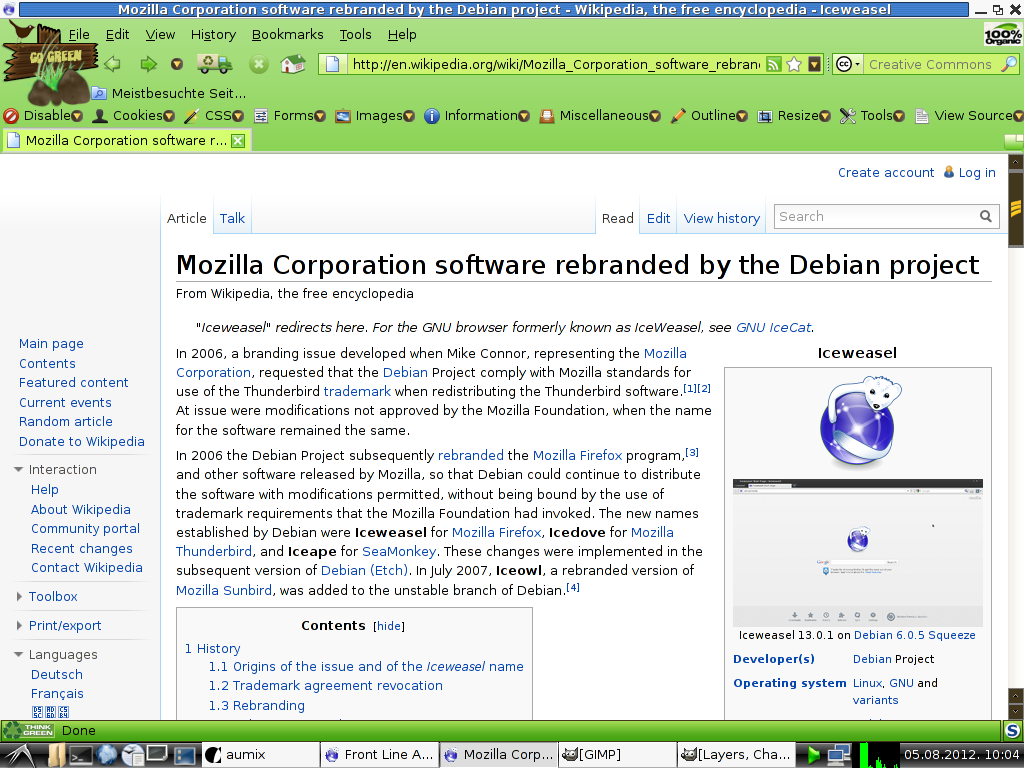
Installing free and orphaned extensions to Debian Iceweasel and GNU IceCat

In part, this also applies to Mozilla Firefox.

Debian Iceweasel and GNU IceCat are browsers code-compatible with Mozilla Firefox. For those not in the know, they are both like Firefox, but rebranded, just as some shops order produce from a producer (whether or not they produce generic or their own brand-name products), and the shops then rebrand said produce as "their own". The reason with Mozilla Firefox is that it's a registered trademark that belongs to Mozilla.

There are a number of free extensions and themes for which their publishers don't have their own home pages anymore, and download links from the Internet Archive might not work for various reasons (the most common being that the files were not captured into the vault). These add-ons are generally available from addons.mozilla.org, but the site tends to shut out Debian Iceweasel and GNU IceCat.

Granted, some large Linux distributions have their own repositories that host compatible addons for a specific distro version's specific version of Firefox, but distribution maintainers move on, and repositories that cater for older distros with older Firefox versions are EOL'd, as repos have to host files for newer distro releases.

So, here I had a curious case with Go Green, an MPL-licensed theme for which there was no home page anymore, archive.org didn't host the theme's installer, and the only available place is addons.mozilla.org.

There are two ways to fetch the add-on from Mozilla:

One is the easy way, the other way is more complicated, but also
offers more choice.

The ostensibly user-friendly way to installed the latest version of an add-on is thus_

In the instance of the Go Green theme, you can go to

https://addons.mozilla.org/en-US/firefox/addon/go-green/

— in which page there are two obstacles: One is that all of mozilla.org always uses the latest Cascading Style Sheets (CSS) in formatting its pages, and so the older a version of Firefox is, the less able it is in rendering the pages. Fortunately, Firefox has this great option to view the page without CSS (Cascading Style Sheets).
The other is that JavaScript also blocks showing some links, even if the browser is modern.
So, choose to view the page with no styles:

View > Page Style > No Style

In this case, links and elements previously hidden with CSS will be displayed.

Then, to fetch a specific version of an extension, go to see "Complete version history" (you can jump to it using the text find function; link is clickable).

You should reach this address —

https://addons.mozilla.org/en-US/firefox/addon/go-green/versions/

Or, if you know the address of the add-on, just add versions/ to the URL to see all versions of an add-on, page by page (much simpler, I might add).

The All Versions page shows which browser versions the extension is compatible with, so the best bet is to choose the latest version of the extension that is good for a browser version that matches the prescribed version span.

At the section of a desired extension version, there's a "Continue to Download" link. The link is not clickable, but you can drag it into a new tab, or into the existing tab's widget to cause Firefox to resolve the URL.

In the Go Green theme's case, this will actually open the "roadblock" page, with this address for the page:

https://addons.mozilla.org/en-US/firefox/addon/go-green/contribute/roadblock/?src=search&version=1.25

Since you're using IceWeasel or IceCat, you might still be shut out by JavaScript from downloading an extension, with no download button in sight. This is reasonable, as some extensions won't work in Linux, but the script at mozilla.org is not always able to tell exactly that the user is actually running a compatible browser.

When installing extensions made for an operating system different than Linux, then install these at your own risk. It may be easier with themes, but some complex extensions require that you only install the one made for your operating system, especially if it's also been made available for the OS. I've seen this happen with the DOM Inspector extension, which is made by Mozilla, has been included with Firefox, and is specifically tailored to each specific version of Firefox.

As the roadblock page doesn't show the download link when CSS for it is active, choose to use no styles in the page (if you have so far been dragging the links into the tab widget, then the no styles setting for the tab persists)...

The "Download for Windows" link is placed at its coded position, but is not clickable (probably governed so by JavaScript), so drag it into a new tab and save the extension, or if it's already an xpi, install it.

If the add-on installer's filename has a .jar extension, then the extension can be saved as .xpi or renamed later.

This whole option is then simpler, but might not guarantee that you will be getting the right extension that is made for a browser running in your operating system.

With the Go Green case, the theme has only been made for Windows, but if the browser is compatible, it can also be installed in Linux and for Debian Iceweasel. Case in point:


Click for a bigger image.

Downloading the add-on by name from the Mozilla FTP site

To see if a Linux (or Mac) version of the extension is available, you need to find out the add-on's number at mozilla.org. In some cases it's available already in the extension URL, but I think this nomenclature is being phased out from the web front-end.

If you still don't know what's the number of the addon (if the add-on's address is named and not numbered), you can find it out through its add-on icon or other clues, like links and such. See

View > Page Info > Media

Look for an image, the URL of which matches

/addon_icons/

In that URL, the image's filename starts with a number, like

/13551-64.png

^ 13551 is the number of the add-on (64 is probably the native image width). After that, it's easy to find the add-on via mozilla.org's FTP site:

ftp://ftp.mozilla.org/pub/mozilla.org/addons/13551/

The FTP folder there will then display a list of all release versions of extension or theme installers, which are usually JAR or XPI files. If the installer is a JAR file, and you want to install it for Firefox or Iceweasel, download the extension's installer, rename its extension from .jar to .xpi — and then install it in the browser from the directory it's located in.

And to top it off,

The URL for the Go Green theme's latest installer is this:

http://releases.mozilla.org/pub/mozilla.org/addons/13551/go_green-1.25-fx-win.jar

Saturday, March 10, 2012

Cheat sheet and notes for using Knoppix 6 or newer

This I initially made for myself, but then writing got out of hand :-)

For a full-page treatment, see here.


Flash

Knoppix 6.0.1 includes Iceweasel 3.0.6, which does not have support for HTML5 video, so you need to install Flash to watch multimedia. Granted, these versions of Knoppix and Iceweasel are rather outdated, so Knoppix 6.7.1 (or 7) is often a better choice on a new computer.

Another option is to download and install a newer version of Firefox. See below.

The version of Flash compatible with Knoppix 6.0.1 is 10.3. Download it, extract libflashplayer.so into the
/home/knoppix/.mozilla/plugins directory (the plugins directory must also be created). Restart Iceweasel.

02.05.2013. Update

Modern Firefox

By May 2013, Iceweasel 3.0.6 has become so old and outdated that it's not supported by major websites anymore. This includes Google and all its properties (YouTube, Google Drive/Docs, Blogger, and others). The same applies to Yahoo!, twitter, and many other major sites and services.

Using Synaptic in Knoppix 6.0.1 to upgrade to Iceweasel 17 is impractical on account of the Iceweasel 17 package having hundreds of dependencies that must also be upgraded, which really amounts to a whole operating system upgrade. Therefore it's simpler to get the Firefox Linux binary.

The latest official major version of Firefox that still works in Knoppix is version 17, specifically 17 ESR (Extended Support Release). Newer versions won't work.

Firefox 17 ESR can be obtained from Mozilla's FTP site, and I got the latest version here:
ftp://ftp.mozilla.org/pub/mozilla.org/firefox/releases/17.0.6esr/linux-i686/en-US
Since Firefox 17.0 ESR is in active maintenance (17.0.6 released on 09.05.2013., which is very recent), then Mozilla is likely to release newer patchlevel versions.

Since new patchlevel versions are placed in a different FTP directory, then...

...here's a beginner's "navigation how-to" for people unfamiliar with FTP

Primer
FTP (File Transfer Protocol) is older than the web, and it has been very useful in facilitating large downloads. The content of FTP sites is structured hierarchically, as in folders in a computer file system. Files and directories are listed in alphabetical order UNIX-style: directories are not sorted first, but like all other files; items starting with capital letters are at the top of the list, then followed by lower-case items. In a graphical browser, file and folder names are linked and thus clickable.

Mozilla's FTP site
FTP URLs are given as examples
As Mozilla releases a new version of Firefox, then all files specific to a version are given their own directory. Genereally, all Firefox versions are placed in /releases folder of Mozilla's FTP site:
ftp://ftp.mozilla.org/pub/mozilla.org/firefox/releases
The latest version at this time is 17.0.6 and you can scroll down the list to enter that directory:
ftp://ftp.mozilla.org/pub/mozilla.org/firefox/releases/17.0.6esr

As Knoppix is Linux, choose /linux-i686
ftp://ftp.mozilla.org/pub/mozilla.org/firefox/releases/17.0.6esr/linux-i686

What you get in the /linux-i686 directory is a longish folder listing of different Firefox language versions (Firefox is released in many languages), listed in the format of ISO-639-1 two-letter language code followed by ISO 3166-1 alpha-2 two-letter country codes.

The respective code combination for English-United States is en-US
ftp://ftp.mozilla.org/pub/mozilla.org/firefox/releases/17.0.6esr/linux-i686/en-US

There you'll see the archived Firefox binary firefox-17.0.6esr.tar.bz2
ftp://ftp.mozilla.org/pub/mozilla.org/firefox/releases/17.0.6esr/linux-i686/en-US/firefox-17.0.6esr.tar.bz2

Download this file to the Desktop. Once the tar.bz2 file is downloaded, go to the desktop, right-click on the file, choose the Extract > Extract To... command. You'll get a file/location picker and the default should be the Knoppix folder. Press OK to extract.

The Firefox executable is then in the /home/knoppix/firefox/ user directory (knoppix being the user account folder).

Even after Firefox is extracted, a shortcut won't be created to the Knoppix LXDE desktop environment menu.

Do keep in mind that since Iceweasel is code-compatible with Firefox, they both share the same user settings located at /home/knoppix/.mozilla/firefox

It is thus recommended to create a different profile for Firefox.

You can start Firefox from the command line:
knoppix@Microknoppix:~$ ./firefox/firefox -P &

./ stands for specifically targeting a folder from within the current directory;
-P forces the start of the Firefox Profile Manager;
& (ampersand) makes sure that Firefox starts independently from the terminal window.

After that, the Firefox Profile Manager opens up and you can create a new Firefox profile. When doing so, assign a new and simple profile name.

If you close Firefox, you can start Firefox again from the command line using the new profile:
./firefox/firefox -P newprofilename &
Alternately, the easier way is to unset starting Firefox or Iceweasel in a profile automatically. That way it's slightly more user-friendly to choose a profile, at least when starting Iceweasel. Whereas with Firefox only the ./firefox/firefox command without can be used without having to invoke additional command-line options.

So much for now. I might continue and expand on this further.

Saturday, September 10, 2011

Absolute positioning of content in a containing block

A less formal alternative title would be "Placing content from the middle of a box into a sidebar to the edge of a containing block"

Context

The problem first occurred when I tried to create a user style for a login page to accomodate small screens (Yes, there are people who use small screens).

The main problem was that I could not change the structure of the not-so-well designed page, so I had to resort to some unorthodox uses of formatting in CSS. Later it turned out ot have some interesting uses in a sister blog.

The basic [formatting] concept behind this is taking content out of normal flow, placing it as a sidebar into the top right edge of the container block, and then making sure that other content (mostly visible text) will then flow around the sidebar box.

While it may sound simple just like that, then implementing a working solution for the first time proved more difficult. The solution that I found out does work, but still contains some caveats. More about it later and below.

In-depth

What does not work

First off, just floating the box to the right is pointless, because the box is positioned according to normal flow and is floated where it's structurally positioned in the page (or text). It is then adjacent to that content which only follows the box in the page structure.

Adding a negative top margin is just as impractical, because it will never be accurate relative to the sidebar's position, as the position of the sidebar still depends on how much space is taken up by preceding objects or text, since relative renderings are always different, depending on fonts, rendering engines and zoom levels.

If you're modifying your own content, then putting the box before the content that initially preceded it defeats the purpose of normal text flow (as seen in Lynx).

The solution

Mostly assuming that the containing block and inner blocks are <DIV> elements, which I so dislike, because they are severely overused.

The points are here in a hierarchically continuous order, so as to present the logic and reasons behind it.
  • The containing block,
    which is to enclose the sidebar and content that should surround it:
    Set its position to relative — This will keep absolutely positioned blocks inside the containing block; otherwise all absolutely positioned blocks will be taken out of all flow and will be (absolutely) positioned relative either to any preceding relatively positioned block in the page hierarchy, or the viewport, which is the topmost block.
  • The sidebar's position must be set to absolute, with most important parametres set like this:

    <DIV STYLE="position:absolute; top:0px; right:0px; width:234px">Textual content<DIV>
    ^ top:0px and right:0px will place the sidebar box to the top right (to right of main content), where position is calculated from the containing block's top and right edges; width:234px — Here you can specify your own width for the absolutely positioned box.
  • And finally, the tricky part — How to make sure that content or text surrounding the sidebar will show next to the sidebar without all of parts of it staying hidden under the sidebar?

    Well, my solution was to place the that content (which precedes the sidebar and is innards) into a relatively positioned DIV& box, with its right margin approximately the amount of the sidebar's width. This ensures that text or content inside that DIV won't stay under the sidebar.

    If the sidebar is long enough to encompass much of the content that follows, then that content should also be encased in a DIV with similar parametres: relative positioning and same margins.

    Caveats:
    • If much of the content left of the sidebar is text, then its flow is limited to the squares of DIV boxes (there must be at least two of them). Normally flowing text could then start well after the sidebar and DIV boxes end.

      Mitigating effects
      One way to mitigate this without creating separate DIVs and their left (or right) margins is to create a ghost DIV with same size properties as the sidebar floated right just under the absolutely positioned sidebar. This has better chances of taking effect if the sidebar's height and width are fixed and that the content is controlled server-side.

      Yes, the "ghost" DIV can contain about the same text, if there's a desire for that ghost DIV to follow the size of the primary DIV (think differences in fonts and zoom levels), but this then may defeat the purpose of having that text in the ghost sidebar, because it would be duplicating. Oh well, solutions can be made both with JavaScript and CSS to make sure this text doesn't appear twice in a text-only or very plain browser (think Lynx).

      Otherwise I was thinking of :before and :after pseudoelements, or of a way to insert a client-side Greasemonkey script.

      This is now the point where one can play around with various options.
    • I found another problem when editing text here in Blogger, where the sidebar height was greater than text next to it, so the sidebar, given that it was absolutely positioned, overlapped past the post tools area. In that sense it's a good thing to try out the size of the sidebar in the DOM Inspector, which allows client-side visual editing of webpage elements under inspection.

      One way to mitigate this would be wrapping all of the affected content, including some preceding the sidebar (where it visually starts) in a DIV and specifying a height greater than the height of the sidebar. The height of the DIV should then allow for some hypothetical differences in size.

This out-of-order sidebar solution works in Firefox 1.0 (Mozilla 1.7.xx, preferably SeaMonkey 1.1.19 or K-Meleon 1.5.4) and newer. It does not work in Internet Explorer 7 (or older), so a workaround must be in place, if there's a large IE-based audience in mind. It should probably work in Internet Explorer 8 or newer.

Saturday, July 30, 2011

ClamWin Antivirus Glue for Firefox

If anyone is still using Firefox 1.5–2.0 and ClamWin, too, then they'd be interested in the subject extension. Unfortunately, this addon has been delisted from addons.mozilla.org and very hard to find from FTP sites (which I tend to trust more).

So I found what turns out to be only one source:
http://pub.vse.cz/pub/Mozilla/addons/771
http://cache.vse.cz/pub/Mozilla/addons/771
The license for the extension is MPL 1.1/GPL 2.0/LGPL 2.1.

Caveat

Version 0.2.4 officially works in Firefox 1.5, but here are instructions in a 18.01.2007 comment to a blog post on similar matters. (The original text was here.)
Instructions in my own words: Download the XPI file (the lowermost is the newest version; if you are not sure, then check the statusbar when mousing over the 0.2.4 file link), extract it into a folder, open install.rdf with an editor that supports CR & LF linebraks (NotePad2 is ok); there, edit the em:maxVersion parameter value from 1.4-something to 2.0.0, compress the decompressed files, then rename the file's .zip (I assume) extension to .xpi, then move the file into an open Firefox window to install. When recompressing, make sure that you're only compressing the selected files and folders within the extracted folder and not the folder itself.

Modern stuff

For people using newer browsers, see the Fireclam extension for both Mozilla Firefox 3 and newer, and SeaMonkey 2 and newer.

Tuesday, May 10, 2011

Collapsing elements in Firefox 1.0

As I was perusing Yahoo Mail Classic in Mozilla Firefox 1.0, it turned out that there was a linked block element half-blocking the sign-out link at the top of the page and in May this year, those links stopped being underlined when hovered over — this made targeting the pointer too difficult to click on the sign-out link. If I click on that block element, it will jump to a position on the page, then, somehow the block element probably moves and probably frees up the space above the sign-out link... Or whatever.

Turned out that the culprit was an invisible non-collapsed block that contained a "Skip to conent" link, which was meant for browsers like Lynx, Links, Elinks, Netscape 4.x, and other older fare (Lynx is still maintained :). This is really the fault of site coders, who instead of specifying display:none in the element's style, only specified visibility:none. The former would have collapsed the whole element, the latter only makes it invisible, but still usable and visually existent in the document structure.

If positioning is important, then one design solution is to specify a low z-index for the invisible DIV element and a correspondingly higher z-index for code that contains links (an unordered list). In CSS, z-index specifies how elements are layered with respect to each other: a higher value means that an element is above (or in front of) all other elements and a lower value (if somewhere is a higher value specified) means that the element is below, or behind higher-valued elements.

First I tried the Adblock Plus (ABP) extension, but that didn't work: ABP 0.7.0.2 is the last version for Firefox 1.0, but lacks functionality to collapse/hide elements by their id. Only the next version, 0.7.1, starts supporting this. I've written about it previously.

As I was looking for a solution, the Greasemonkey extension caught my fancy. The last to support Firefox 1.0 is 0.5.3.
Version 0.5.3 is also the last one of Greasemonkey to install on SeaMonkey 1.1, but it doesn't work.

The solution is to first install xSidebar (If the current stable versions won't want to install, then version 1.0.1 or 1.0.2 might install properly). Then on the back of xSidebar a modified Greasemonkey extension can be installed. So for SeaMonkey 1.1, Greasemonkey 0.8.2 mod is the order of the day. Note that if you have Adblock Plus 1.0.2 installed, its toolbar button will vanish. But no worries: You can turn on the Adblock Plus status bar icon from Tools > Adblock Plus Preferences...
Greasemonkey is a powerful tool to change the look and functionality of online sites and web pages client-side, but alas, it is not very easy and requires knowledge of HTML, JavaScript and CSS.

There are many instructions online on how to incorporate custom JavaScript and CSS snippets into your browser equippped with Greasemonkey and how to specify server whitelists and blacklists. I might introduce the same instructions here or put them up somewhere else.

While I thought I just had the solution, it then turned out that the block element was only equipped with a class parameter and no ID. I had also learned that only recent and modern versions of Greasemonkey now support the JavaScript getElementbyClass functionality, but I only have an outdated version.

Well, no matter: Greasemonkey 0.5.3 supports getElementbyId, but that really is not the most important thing, because Greasemonkey also allows injecting snippets of Cascading Style Sheets with JavaScript. And CSS is power.

Yes, while the DIV element did not have the ID parameter in it, it still had the CLASS parameter specified and the solution looks like this:
document.styleSheets[0].insertRule('A[class~=yucs-skipto-search] {display:none}', 0);
/* ^A is the linked element;
• Square brackets in the selector are used for conditional matching in the form of ELEMENT[attribute=value] — In this case, the {display:none} CSS block applies when yucs-skipto-search is found anywhere in an A tag's class attribute value (which the next point is about);
~= means that the pattern for the element attribute may be any matching part inside class, because when I looked at the source, the class parameter contained more than just yucs-skipto-search.
display:none collapses the element. */

document.styleSheets[0].insertRule('A[target=_top]:hover {text-decoration:underline !important;}', 0);
/* ^ In this line, Any hovered link tag A where the target parameter exactly contains _top must be underlined when hovered over. Note that instead of ~= for any matching part inside A[TARGET ]there is a single equals sign = for an exact match. !important overrides anything provided previously and makes sure that the these links are underlined when hovered over. */
So much for now.

Monday, April 25, 2011

Somehow installing, configuring, and using NoScript in K-Meleon 1.5 via Wine

I am assuming that you probably already know how to use Wine and know your way around the computer.

The conditions: Knoppix 4.0.2, because it runs passably with 128 Mb of RAM, in a situation where no swap space is available. This version of Knoppix has a really outdated version of Wine, which makes it difficult to use Windows programs there. There may be people stuck with either that version of Knoppix or that old version of Wine. At least this post provides a case study, which I hope could be of some interest.

The only reasonable place I could find NoScript for K-Meleon 1.5.4 is from extensions.geckozone.org/KMES-NoScriptEn. The version is 1.7.8.0 and it's from 17.06.2008 (that's 2 and 3/4 years old as of April 2011).

First off, change installer's .exe file rights for it to be an executable. Like this from the command line:
chmod u+x "K-Ext(1.1-1.5-1.6)_NoScript(1.7.8.0).exe"
u = for current user; + = add/enable; x = executing;
The filename is wrapped in double quotes, because it contains parentheses "()".
In my case, the first round of installation didn't work. Later I specified this target install directory:
z:\mnt\hda1\Program Files\K-Meleon
^ can't remember if I specified an upper- or lowercase letter z
and installation worked after that.

K-Meleon should not be running during installation, so run it after installation.

27.04.2011.–: After a relatively quick-and-dirty article which turned out to be far more specific than originally anticipated and still quick-and-dirty, I've updated the following with information which will make K-Meleon slightly easier to use as it is, with what the setup is and all...
When running K-Meleon through Wine in Knoppix 4.0.2 (remember that it's from 2005 and very outdated) and when you're stuck with such a set-up:
  • The NoScript button menu can be used with a mouse by right-clicking on the NoScript button and holding the pointer device button down and dragging the cursor to the necessary command (shortcut menus will otherwise turn off after right-clicking on an item and hovering a mouse cursor over its menu; I've seen this in TWM, don't know how it works in other window managers).

    Other ways:
    • Click on the NoScript button, then use menu hotkeys (underlined) to perform a function;
    • or consider dragging the pointer through the NoScript menu via the main Tools menu.
  • Saving configuration changes in the NoScript Options window does not work, because it's impossible to save settings by clicking the OK button, but you can otherwise close the window (saving options may work with newer versions of Wine; haven't tried this myself).

    Workarounds:
    • Configuring NoScript is possible only at about:config for settings (use the noscript text pattern in the about:config search bar to get NoScript-specific settings);
    • ^ Consider removing some default domains there from the noscript.default string;
  • Worse, the NoScript menu in K-Meleon (at least in the given configuration and set-up) won't show domain names in its menu (Shock! Horror!).
    • Now, the whitelist, which is not shown in about:blank, is only configurable in prefs.js at the local K-Meleon profile folder on the hard drive (from where K-Meleon is run). If you don't know what the prefs.js location of the current profile is, open Preferences, go to "Privacy & Security" preference category, click on the Cache tab and see the "Cache Folder:" entry, which shows the location of the current profile folder.

      An example location is here:
      "/mnt/hda1/Program Files/K-Meleon/Profiles/g1bb3r1sh.default"
      So, edit the prefs.js file with a text editor at this line:
       
      user_pref("capability.policy.maonoscript.sites","place.doma.in nam.es here.com in.alphabetic.al ord.er.com ea.ch doma.in na.me separated.wi.th a.space.com and.do not.break.the.li.ne");
       
      Make sure just in case that K-Meleon is not running when editing the file, because if you've saved the file and then exit K-Meleon, then K-Meleon is highly likely to overwrite your changes.

      13.09.2011.
      Given that I had been using K-Meleon like that for a longer while, I created a menu item in the TWM window manager, where I could directly open the prefs.js file from the menu.
    • Alternately, adding sites to whitelists works from the menu (see above), but since the above configuration does not make it possible for the K-Meleon URL bar to function and display addresses, then a user is limited to knowing the site domain and web page address in the following ways:
    • In K-Meleon, the tab bar is typically shown by default, so it should be enough to hover the mouse cursor over a page's tab button: This displays the tool tip, which then shows the site/page title and its partial address.
    • A user might know the site's domain name, if they've entered it themselves (because of limitations, entering a URL goes through editing bookmarks and accessing a bookmark set up for just that).

      A user can specify that only top-level domain names are added, by setting this in NoScript preferences through about:config, only that the whole point of NoScript to me is the fine-grained way in which some subdomains can be whitelisted, so that disruptive ones are duly excluded. Unfortunately, not directly seeing a site's domain name in the URL bar has security implications, including the fact that the non-functioning URL bar doesn't change color when visiting a secure site, though a bottom-right status bar indicator should work. Preferably, only safe sites should be visited. (Avoid clicking e-mail links, if you know they're dubious, but this requires at least some user education and this is where NoScript is useful. There is nevertheless a greater amount of security in running K-Meleon equipped with NoScript, no matter how limited it is, through Wine in Linux than in Windows 9x);
    • Some necessary domain names pulled by a page from (a) differently-named domain/s to fetch scripts and/or stylesheets across sites and subdomains are not displayed anyway (not even in the NoScript menu), so there is no direct way of learning which other domains must be allowed for scripting.
    • Consider disabling NoScript for the duration of the session, if you're using a service which requires logging in and if it's been impossible to learn what are the exact outside domains with necessary scripts.
    • The third option is to import domain names from other NoScript settings in other prefs.js files. This actually works. But what if using a new service that users a non-primary domain name for scripting? Or what if an existing service sometimes changes its subdomains?