Showing posts with label Mozilla. Show all posts

Tuesday, November 1, 2016

Finding the classic Netscape/Mozilla hand cursor

If there is anyone who remembers using Netscape (oh, the good times), they will also remeber the business-like hand cursor that appeared on hovering over links. This cursor is a classic.

Now, originally, the cursor was available at this address:
http://lxr.mozilla.org/mozilla/source/widget/src/build/res/select.cur?raw=1

Alas, that resource is not available anymore.

And whilst
https://dxr.mozilla.org/mozilla1.8/source/widget/src/build/res/select.cur
also exists, I'd found no way to download it.

So, as I was googling (yes, I still..sometimes do that) this classic hand cursor with the
/mozilla/source/widget/src/build/res/select.cur
search string —

I found this awesome resource on GitHub:
https://github.com/krad-radio/mozilla-krad/blob/master/widget/src/build/res/select.cur
Apparently and for reasons unknown, a software developer took the classic Mozilla source and wanted to improve it.
The download link was there all right, so I got my favourite cursor.

License information

As the original Mozilla Application Suite was licensed under the Mozilla MPL/NPL/LGPL tri-license, then this should apply to the subject image shown at the top of this post.

Wednesday, April 3, 2013

Mozillale NoScripti installimine Windows Vistas

Seesinane on siis eestikeelne kokkuvõte oma varasemast ingliskeelsest blogipostitusest. Alguses kirjutasin selle kohta ühele sõbrale, ning kuna tekst osutus siiski pikemaks, leidsin ma seejärel, et jutt vajab avaldamist.

Hiljuti ühes Windows Vistaga masinas avastasin Mozilla 1.7.13. Tegemist on siis tarkvarapaketiga, mille lehitsejamoodul on sama vana kui Firefox 1.0.8 (Aprill 2006; esitlusmootor pärineb 2004. aastast ja Mozilla enda arhitektuur 2001.-st aastast).

Et Mozilla mõnede lehekülgede JavaScripti pärast kokku ei jookseks, läks alguses palju aega, et kuidas sellele NoScript nii peale panna, et töötaks, sest umbes sama vanale Firefoxile Knoppix 4.0.2-s (2005) sai küll. Lõpuks jätsin asja katki...

Mõni kuu hiljem leidsin lahenduse (Mozilla tuli käima panna administraatori õigustega) ja siis panin peale NoScripti, aga nii, et see tuli kindlasti installida Mozilla kasutajaprofiili kataloogi.

SeaMonkey 1.1-ga sellist probleemi ei tohiks olla, sest SeaMonkey 1.1 ja Windows Vista arendus/väljalase langes umbes samale ajale, et põhimõtteliselt sai seda Vista jaoks siis veel kohendada nii, et oleks parem ühilduvus.

SeaMonkey 1.1.19 on üks viimastest vabatarkvaralistest graafilistest lehitsejatest, mis töötab Windows 98/Me peal.

Tuesday, March 12, 2013

Tools to uninstall extensions in Mozilla 1.7.xx and SeaMonkey 1.x.

Mnenhy

In Mozilla Application Suite and SeaMonkey 1.x, removing extensions is not as easy as it is in SeaMonkey 2.0, given that the latter uses Firefox-based infrastructure.

First off, there is Mnenhy, which has many modules and which is more geared towards expert users. The important module is the Chrome Manager, which is accessible from the Tools menu.

* For SeaMonkey 1.1.xx, I use Mnenhy 0.7.6.666 (Can't remember where I got the version with the .666 patchlevel, but this should be the one for SeaMonkey 1.1.xx);
* For Mozilla 1.7.13, I use Mnenhy 0.7.6

Mnenhy 0.7.6 is compatible with Mozilla 1.7 and SeaMonkey 1, and it can be downloaded from mnenhy.mozdev.org

Extension Uninstaller 0.2

Unlike Mnenhy, this is one is more user friendly and even has easy-to-read error logs in case something doesn't work.

Extension Uninstaller 0.2 also requires the Extension Uninstaller API, which should be installed first.

Now, the problem with getting Extension Uninstaller is that its original website with
http://mozmonkey.com/extuninstaller/ and
http://mozmonkey.com/extuninstaller_api/
URLs is offline.

The only relatively good references I found to it are in
http://forums.mozillazine.org/viewtopic.php?t=365228
— where only the addons.mozilla.org extension pages are references, but these are unfortunately closed, too.

The solution is to peruse the original official URLs in the Web Archive.:

Snapshot from 2010-03-04

There, scroll down to the Install section, see the "Install For:" Mozilla link. Right-click on the link, choose "Save Link Target As..." command to save the XPI.

It's a bit more difficult With the Extension Uninstaller API .xpi, which can be separately had from archive.org.

Monday, March 11, 2013

Installing NoScript to Mozilla in Windows Vista

This blog post describes how to install NoScript to Mozilla Application Suite in Windows Vista.
In all actuality, this should also apply to other compatible Mozilla extensions.

Conditions:To install NoScript in an account with administrator rights,
  • you must run Mozilla as administrator.

    For how to properly install NoScript in a guest account, see below.
    Attempting to install in any other way won't work. Yes, I've tried it myself before I found the solution.
  • I chose NoScript 1.1.4.7, because it's the last version for Firefox 1.0.x.
    The reason is that Firefox 1.0.8 uses version 1.7.13 of the Gecko layout engine, which also matches the last version of Mozilla Application Suite. Any newer version might be incompatible, and I haven't tested NoScript 1.10, which is the last version for SeaMonkey 1.1.
  • Since Mozilla 1.7.13 is eight years old and does not support modern web standards, installing any extension from addons.mozilla.org requires more steps:
      To download version 1.1.4.7 of NoScript from addons.mozilla.org,
    • go to its version section there and hover over the 1.1.4.7 section so that the Download Now link which looks like a button becomes visible.
    • Right-click on the Download Now link, choose to "Save Link Target As..." from the context menu, then save the extension into a folder of your choice. The Mozilla extension is saved with the .xpi file extension (but not installed.)
    • 01.03.2014 update:
      If that does not work (because of design changes at a.m.o), go instead to Mozilla's relevant addons folder for NoScript at ftp://ftp.mozilla.org/pub/addons/722/, and scroll down to the chosen version.
      Firefox addons developers, either by tradition and culture or requirements from a.m.o, append their addons' XPI files with product acronyms as markers of compatibility with a client program in such a way that amongst browsers, fx stands for Firefox, sm for SeaMonkey, and mz for Mozilla. This should inform users of older client versions as to which extension version is still compatible.

      As I skimmed over Mozilla's NoScript FTP folder with above knowledge, I noticed that the most recent NoScript version marked with mz is actually 1.8.2.1. I don't remember having tested that version with Mozilla in Windows Vista before, but I hope other adventurous users might be lucky. Maybe in the future I will get to test that version, too.
    • in Mozilla, browse to the on-disk location of the saved extension, and click on it to install. The filename should be noscript-1.1.4.7-fx+mz+sm+fl.xpi
  • Given the circumstances, always install NoScript and any other extension into the user profile and not the general installation folder, because it may be rather difficult to remove it afterwards.
  • Once the extension reports it's installed, exit Mozilla.
  • Then start Mozilla again as Administrator to finish the install process, then exit Mozilla again.
  • Start Mozilla normally.
Added L., 01.03.2014.:

Installing NoScript in a normal/guest account.

Now, in a normal or guest account, it needs more work, mainly because of the differing designs of Windows Vista and Mozilla. We should remember that Mozilla 1.7.13 was made to run in Windows 95...

It won't be necessary to run Mozilla as administrator, because it will launch the instance with administrator credentials, which then brings its own settings as set in the administrator account.

Installing NoScript into Mozilla in a non-admin account mostly follows the steps of installing in the user profile space. After that, restarting Mozilla fails with this error:

"The program must close to allow a previous installation attempt to complete. Please restart."

The result in the background is that Mozilla starts, and starts xpicleanup.exe.
The following is an assumption: xpicleanup.exe wants to delete xpicleanup.dat, and unlike in Windows xp and older, the latter file is placed not where xpicleanup.exe anticipates it to be. xpicleanup.exe then fails to delete the file, Mozilla exits, and renders xpicleanup.exe an orphan process, hanging in memory. Trying to start Mozilla several times leaves more instances of xpicleanup.exe in memory. These processes must be ended either from Task Manager or Process Explorer.
Finding xpicleanup.dat within your profile, deleting or renaming it to xpicleanup.bak does the trick, and Mozilla will start again, with NoScript installed and functioning. (I usually rename such files as filename.ext.bak in order to preserve its extension, might I ever need the original and now renamed file again.)

xpicleanup.dat for a normal/Guest account (yours might be named differently) is located at —

C:\Users\Guest\AppData\Local\VirtualStore\Program Files\mozilla.org\Mozilla\

^ to browse there, enable viewing of hidden files at folder options (Alt or F10 > Menu > Tools > Folder Options)

Useful instructions from a post by Alice at MozillaZine Forums.

A little bit of background information and history

Mozilla Application Suite (Mozilla) was not designed with Windows Vista in mind, so using it in a modern operating system is not without obstacles. Yes, it does run, but this post about installing extensions sort of shows where some of the caveats lie.

Mozilla was at the time the open source base for Netscape, and version 1.0 of Mozilla was released on 05.06.2002, which is roughly 11 years ago as of 2013. I mean, wow, eleven years. Anyways, Mozilla was released to a wide variety of operating systems and for just as wide a variety of versions of each, including Windows 95, Windows 98, Windows 98 SE, Windows Me, Windows 2000 (released 17.02.2000) and Windows XP (itself released on 25.10.2001).

After version 1.0, Mozilla progressed to have quick developments over its lifetime by getting new features added, but not too much by way of changes to its baseline architecture.

Longevity
Mozilla's penultimate 1.7.13 version came out on 21.04.2006, just five and a half months before the RTM version of Windows Vista was finalized on 08.11.2006. Windows Vista was released to general availability on 30.01.2007.
 
Mozilla 1.7 Alpha is dated 23.02.2004, and 1.7 itself came out on 17.06.2004, so there is two years and about two months of time between 1.7 Alpha and 1.7.13, and exactly two years between 1.7 RC1 (21.04.2004) and 1.7.13.
After mozilla.org ceased development of Mozilla Application Suite, another team took over development and renamed the project SeaMonkey. Windows Vista was not released yet by the time SeaMonkey 1.0 arrived on 30.01.2006, but beta versions of Vista had to have been available already.
 
SeaMonkey 1.1.xx (18.01.2007 and on) was thereafter developed to accommodate Windows Vista, with SeaMonkey 1.1.19 (16.03.2010) being the last version of the 1.1 line, and the last for Windows 98/Me. Note that Windows 7 was released on 22.10.2009, so there's a great possibility that SeaMonkey 1.1.19 should run well on that operating system, too.Three years and nearly two months between SeaMonkey 1.1 and 1.1.19.

Overall, if I discount layout engine changes, then Mozilla and SeaMonkey are essentially the same product and programmatically the same infrastructure. When taking into account the release dates of Mozilla 0.8/0.8.1 (14.02.–26.03.2001), when it finally became reasonably stable and usable, and SeaMonkey 1.1.19 (16.03.2010), then that whole architecture has lasted for about nine years. Ten when factoring in development time, but that's a stretch considering official titles. If I were, on the other hand, to also consider Classilla, a browser for Mac OS 9, and the latest version of which was released on 19.10.2012, then all in all, Mozilla's run could certainly be timed to ten years from Mozilla 1.0, eleven years from Mozilla 0.9.5 (12.10.2001), and almost twelve years since Netscape 6 (06.12.2000).

Such a long lifetime for one branch of development is a testament to its quality and reliability over a long span of time.

Future

The reason to have NoScript in Mozilla is that the browser is just so old and can easily crash with a piece of JavaScript newer than what Mozilla can support. It should be of relevant help that the post that follows this one, is a tutorial on installing extension uninstallers in Mozilla and SeaMonkey.

Saturday, August 4, 2012

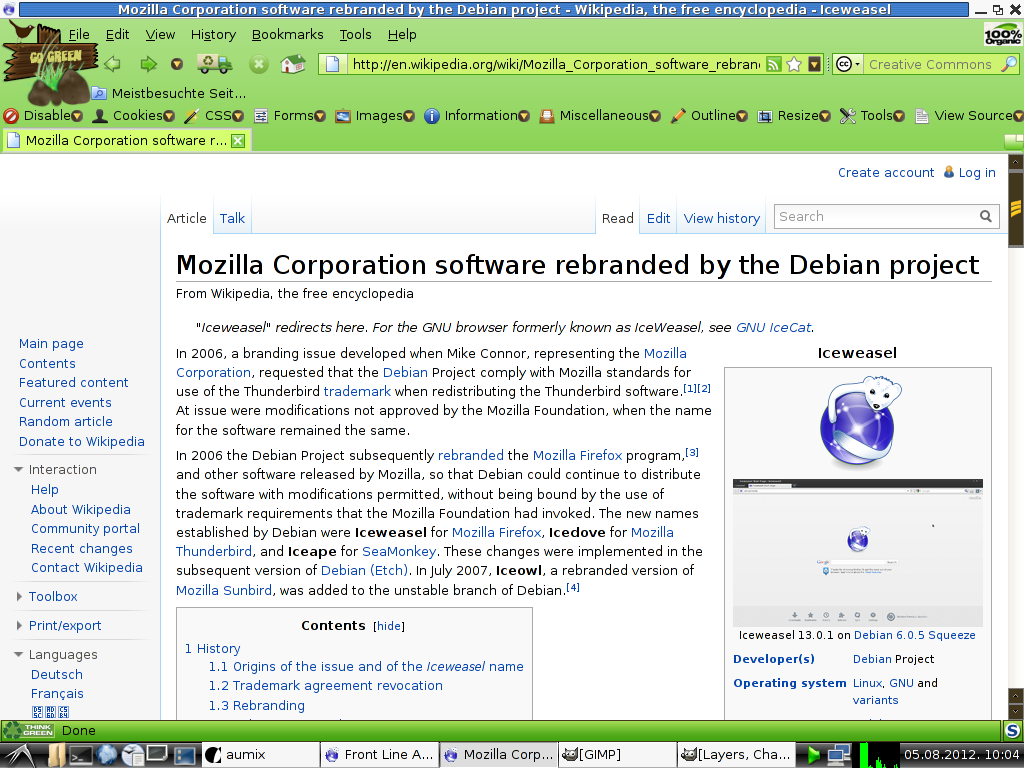
Installing free and orphaned extensions to Debian Iceweasel and GNU IceCat

In part, this also applies to Mozilla Firefox.

Debian Iceweasel and GNU IceCat are browsers code-compatible with Mozilla Firefox. For those not in the know, they are both like Firefox, but rebranded, just as some shops order produce from a producer (whether or not they produce generic or their own brand-name products), and the shops then rebrand said produce as "their own". The reason with Mozilla Firefox is that it's a registered trademark that belongs to Mozilla.

There are a number of free extensions and themes for which their publishers don't have their own home pages anymore, and download links from the Internet Archive might not work for various reasons (the most common being that the files were not captured into the vault). These add-ons are generally available from addons.mozilla.org, but the site tends to shut out Debian Iceweasel and GNU IceCat.

Granted, some large Linux distributions have their own repositories that host compatible addons for a specific distro version's specific version of Firefox, but distribution maintainers move on, and repositories that cater for older distros with older Firefox versions are EOL'd, as repos have to host files for newer distro releases.

So, here I had a curious case with Go Green, an MPL-licensed theme for which there was no home page anymore, archive.org didn't host the theme's installer, and the only available place is addons.mozilla.org.

There are two ways to fetch the add-on from Mozilla:

One is the easy way, the other way is more complicated, but also
offers more choice.

The ostensibly user-friendly way to installed the latest version of an add-on is thus_

In the instance of the Go Green theme, you can go to

https://addons.mozilla.org/en-US/firefox/addon/go-green/

— in which page there are two obstacles: One is that all of mozilla.org always uses the latest Cascading Style Sheets (CSS) in formatting its pages, and so the older a version of Firefox is, the less able it is in rendering the pages. Fortunately, Firefox has this great option to view the page without CSS (Cascading Style Sheets).
The other is that JavaScript also blocks showing some links, even if the browser is modern.
So, choose to view the page with no styles:

View > Page Style > No Style

In this case, links and elements previously hidden with CSS will be displayed.

Then, to fetch a specific version of an extension, go to see "Complete version history" (you can jump to it using the text find function; link is clickable).

You should reach this address —

https://addons.mozilla.org/en-US/firefox/addon/go-green/versions/

Or, if you know the address of the add-on, just add versions/ to the URL to see all versions of an add-on, page by page (much simpler, I might add).

The All Versions page shows which browser versions the extension is compatible with, so the best bet is to choose the latest version of the extension that is good for a browser version that matches the prescribed version span.

At the section of a desired extension version, there's a "Continue to Download" link. The link is not clickable, but you can drag it into a new tab, or into the existing tab's widget to cause Firefox to resolve the URL.

In the Go Green theme's case, this will actually open the "roadblock" page, with this address for the page:

https://addons.mozilla.org/en-US/firefox/addon/go-green/contribute/roadblock/?src=search&version=1.25

Since you're using IceWeasel or IceCat, you might still be shut out by JavaScript from downloading an extension, with no download button in sight. This is reasonable, as some extensions won't work in Linux, but the script at mozilla.org is not always able to tell exactly that the user is actually running a compatible browser.

When installing extensions made for an operating system different than Linux, then install these at your own risk. It may be easier with themes, but some complex extensions require that you only install the one made for your operating system, especially if it's also been made available for the OS. I've seen this happen with the DOM Inspector extension, which is made by Mozilla, has been included with Firefox, and is specifically tailored to each specific version of Firefox.

As the roadblock page doesn't show the download link when CSS for it is active, choose to use no styles in the page (if you have so far been dragging the links into the tab widget, then the no styles setting for the tab persists)...

The "Download for Windows" link is placed at its coded position, but is not clickable (probably governed so by JavaScript), so drag it into a new tab and save the extension, or if it's already an xpi, install it.

If the add-on installer's filename has a .jar extension, then the extension can be saved as .xpi or renamed later.

This whole option is then simpler, but might not guarantee that you will be getting the right extension that is made for a browser running in your operating system.

With the Go Green case, the theme has only been made for Windows, but if the browser is compatible, it can also be installed in Linux and for Debian Iceweasel. Case in point:


Click for a bigger image.

Downloading the add-on by name from the Mozilla FTP site

To see if a Linux (or Mac) version of the extension is available, you need to find out the add-on's number at mozilla.org. In some cases it's available already in the extension URL, but I think this nomenclature is being phased out from the web front-end.

If you still don't know what's the number of the addon (if the add-on's address is named and not numbered), you can find it out through its add-on icon or other clues, like links and such. See

View > Page Info > Media

Look for an image, the URL of which matches

/addon_icons/

In that URL, the image's filename starts with a number, like

/13551-64.png

^ 13551 is the number of the add-on (64 is probably the native image width). After that, it's easy to find the add-on via mozilla.org's FTP site:

ftp://ftp.mozilla.org/pub/mozilla.org/addons/13551/

The FTP folder there will then display a list of all release versions of extension or theme installers, which are usually JAR or XPI files. If the installer is a JAR file, and you want to install it for Firefox or Iceweasel, download the extension's installer, rename its extension from .jar to .xpi — and then install it in the browser from the directory it's located in.

And to top it off,

The URL for the Go Green theme's latest installer is this:

http://releases.mozilla.org/pub/mozilla.org/addons/13551/go_green-1.25-fx-win.jar

Friday, July 27, 2012

Windows Me, Netscape 4.x

This text was written as a series of replies I posted in the YouTube comments section of a promotional introduction video of Windows Me, which can be found in the said operating system.

Since the video was not uploaded from the official source, chances are that the video and the comments to it won't be available at some point of time. So I posted them here for future reference.

And since Blogspot does not have limits on the amount of text, then I have edited the replies a bit to add text.


Windows Me was really good on something like a 667 MHz CPU and 128Mb RAM at the time. If you want to run reasonably modern software without swapping much, then you need 256 Mb of RAM (factor in [modern] web browser, IM program, OpenOffice 2.4.3).

Windows Me can run on less, of course, as it was included in computers that only had 64Mb of RAM.

At one point, Windows xp ran fine with 128 Mb RAM, but nowadays it needs 512M RAM as a real-life minimum to keep the system secure & do something productive.
These specs were for a new PC from around 2000 that was first supplied with only 64 Mb RAM. I requested it have 128 Mb, since the lesser setup was slow with multimedia of the time (it had fast Internet, so I knew it was the amount of RAM). After the RAM upgrade, using the computer was a breeze.

I also took very good care of the hard drive and the OS, keeping it updated & secure, and since its users mostly used Netscape for business, then viruses and exploits never made it there.
At that time it [the popular version of Netscape] was Netscape Communciator 4.x. I think on that PC we stuck with 4.79 for a long time (the last of 4.x was 4.8, released in 2002 :-). The 4.x branch was the first to support CSS, but that was the only feature which caused crashes when turned on (especially in 4.0x), so I kept it off on all our Netscapes, which were fairly solid after that. Despite the clunky Navigator, the best part was the e-mail client, which introduced mail filters to fight spam (then seen as controversial).
We skipped Netscape 6, never considered 7.x, and in newer PC's moved instead to Mozilla, the open-source descendant of Netscape and which Netscape 6 and 7 were based on anyway.

As Mozilla Foundation started Firefox, it ceased Mozilla development, which was taken over by others, and Mozilla Application Suite became SeaMonkey.

The last version of SeaMonkey for Windows 98/Me is 1.1.19 ([from] 2010); its Gecko rendering engine is a wee bit newer than that of Firefox 2.0 (Gecko 1.8.1.20 vs 1.8.1.24).

Monday, May 23, 2011

Putting stuff before a counter with CSS and associated caveats

I thought this too important to be passed up, so here's only a very rough draft of what I discovered. And because I was only revisiting this subject right about now, I have yet to get my own head around all this, with more detailed explanations.
(Blogger had nasty issues with updating their software, so a number of blogs were in read-only mode and so instead of writing this up I was occupied with other things. The good thing is that Blogger have been very responsive in addressing the posting outage.)


When tallying personal data and opinions for what was ostensibly a list of items in a text file, I wanted to find out how in an ordered HTML list (a numbered list with <OL> tags) I'd be able to use Cascading Style Sheets (CSS) to place some special items before counters (usually numbers, but CSS 2 standard has expanded counters to be much more) as markers of some sort.

The main point was to make a more informative and interesting list... Well, yes, but this turned out to be a far more difficult exercise than I first thought.

For an intro, the following describes the differences in rendering between Mozilla Firefox 2 and Mozilla Firefox 3+. Because these browsers use the Gecko rendering engine, which is used by other browsers, then here's also a quick browser side-by-side of the rendering engine's branches:
Gecko 1.7Gecko 1.8.1Gecko 1.9 and newer
Mozilla Firefox 1.0Mozilla Firefox/IceWeasel 2Mozilla Firefox/IceWeasel 3+

Mozilla Application Suite 1.7
SeaMonkey 1.1SeaMonkey 2+
K-Meleon 1.5K-Meleon 1.6+

What follows is example CSS code with some comments. I haven't yet had all the time to describe everything, but bear in mind the lede.
OL.Eurovisioon {counter-reset:item; list-style-position:outside}

OL.Eurovisioon LI {display:block;}


/*display:block ^ loses the browser's automatic numbering;
• The items must be displayed as block, so as to make sure that the later width attribute applies. */

OL.Eurovisioon LI:before {float:left; content:'miskitekst\ ' counter(item) '.'; counter-increment:item; border:solid 1px gray; padding-right:5px; width:82px; text-align:right; line-height:1.1em; color:navy; white-space:nowrap} /* these work... */

/* ^ • Floating them left makes sure that the items are displayed like in a standard ordered list;
item must be inside counter(), item is also specified for counter-increment;
text-align:right aligns numbered counters right and so makes it more list-like again;
white-space:nowrap makes sure that when increasing text size, text inside blocks wouldn't wrap and add in height and take away from the structure.

Caveats:
Once the items are all displayed as text-block or inline, the width attribute does not apply anymore. Displaying as block and floating to right works in Firefox 4 (I'm also assuming 3.0+), but not in SeaMonkey 1.1 and anything with the Gecko 1.8.1 engine (see the above table) and the caveat applies to all older browsers.). Setting the display to text-block or inline fixes the issues in SeaMonkey 1.1, only that setting width attributes does not work then. */

OL.Eurovisioon > LI.plus:before {width:82px; content:'\ sisu\ ' counter(item) '.\ '; text-align:right; color:blue} /* somehow works */

OL.Eurovisioon > LI.plus {list-style-position:outside}
^ Is this really necessary?
Moreover, the list already contains tabular data; including informative content with :before or :after pseudo-classes means that this data won't be indexed and may be lost to search engines. Non-graphical and older browsers won't be able to see such content.

I, of course, thought that I'd never see the day when my own fancy CSS implementation would not be visible with something like SeaMonkey 1.1.19.

The correct rendering is supported by Mozilla Firefox and IceWeasel 3 (probably since 3.0), SeaMonkey 2, Google Chrome (Version 11 does, so I'm assuming a host of earlier versions do, too), and the latest Konqueror, Apple, and Opera fare. Internet Explorer 7 does not support this. Bleh.

So here's the example list:
  1. tekst
  2. teine tekst
  3. kolmas tekst
  4. neljas tekst
with corresponding code in HTML:
<OL CLASS=Eurovisioon>
<LI>tekst</LI>
<LI CLASS=plus>teine tekst</LI>
<LI>kolmas tekst</LI>
<LI>neljas tekst</LI>
</OL>
So long I still have to use Mozilla Firefox 1.0, I must still use a simple HTML table. At least the advantage is that most browsers will be able to see the content. The table in question is here.

As the information was laid out in a text file, it nevertheless turned out to be tabular data, which was actually much simpler to organise into a table, rather than implement complex CSS for the same.

Monday, March 21, 2011

What's left of sidebars for Netscape

Ed Mullen has a great page on Netscape and Mozilla tips and even a page that includes installable links to sidebars that can still be added to SeaMonkey 1.1.xx, a successor to Netscape 7/8 and Mozilla Application Suite.

Unfortunately, some of the sidebars are now outdated, half-work, redirect, cannot be found anymore or are completely offline.

Below is a selection of sidebars I found to be interesting to check them out.

Sidebars that still work:

  • The Google sidebar works! Yay!
  • The Real.com Guide sidebar only offers search for audio, video, and radio stations (no actual Guide to speak of).

...That are outdated:

The CNN Expanded Sidebar is still live, but stopped having updates since two years ago on March 2, 2009: The Dow Jones index dropped below 7000 on that day, because AIG had a record loss, tech gadgets had become a luxury, and "Twilight" stars were huge.

The links to news sites don't work, because they use a redirect via info.netscape.com (which now redirects to netscape.aol.com ).

In terms of context, the "Last updated" text in the sidebar is inaccurate, because it's most likely a script. That sidebar page is now a virtual time capsule of World news.

Netscape Sidebars

...that redirect:

  • Netscape WebCenter Travel (webcenter.travel.netscape.com) — Ah, well, this at least redirects to travel.aol.com, but that's it. At least it's topical.
  • Netscape Celebrities (celebrities.netscape.com) — redirects within the sidebar to netscape.aol.com.
  • Netscape TV Listings (tv.netscape.com) — redirects in-sidebar to netscape.aol.com.

...that don't work anymore:

(in descending order of importance)
  • Netscape Time Zone Converter (cgi.netscape.com) — "Not found" — Ed Mullen's screenshot of it is now a historical artifact;
  • Netscape Netbusiness — because netbusiness.netscape.com is completely offline (no 404 page, even);
  • Netscape Netbusiness Industry Headlines (netbusiness.netscape.com) — domain is offline;
  • Netscape Netbusiness Search (netbusiness.netscape.com) — offline;
  • Netscape DevEdge (developer.netscape.com): "This tab is not available right now." — Taken offline since about 11.10.2004 and then moved to devedge-temp.mozilla.org/index_en.html
     
  • Netscape Home Improvement (homeimprovement.netscape.com) — "Not Found";
  • Netscape Home Improvement House and Home (homeimprovement.netscape.com) — "Not Found";
  • Netscape Lifestyles Pet tools (lifestyles.netscape.com) — "Not Found".
     
  • American Greetings (lifestyles.netscape.com) — "Not Found"
• The OS/2 sidebar does not work either, because os2.org cannot be reached.

Speaking of which — OS/2 has officially outlived Windows 9x, because according to screenshots, Mozilla Firefox 3.5.4 works in it. OS/2 can also run OpenOffice.org 3.1.1 and OS/2 now lives on as eComStation, where Firefox 3.6 and 4.0 (beta) can also be run.

eComStation is capable of running OpenOffice.org 3.2, VLC Media Player 1.1.4, and CUPS, a free software printer framework (modern printer support).

While Windows 9x only supports Mozilla Firefox 2.0, OpenOffice.org 2.4, and has ageing support for printers (I admit as much that some printers useless with CUPS are supported in Windows 9x)...

Monday, December 6, 2010

Best Gecko-based browser for Windows 9x

The latest and last versions of Gecko-based browsers to run on Vanilla Windows 98/Me (and 95, with updates and other reservations) are
  • Mozilla Firefox 2.0.0.20 (Gecko 1.8.1.20, 20081217),
  • K-Meleon 1.5.4 (Gecko 1.8.1.24pre, released on 05.03.2010) and
  • SeaMonkey 1.1.19 (Gecko 1.8.1.24, released on 16.03.2010).
If there were a competition between the three, then the winner would be SeaMonkey.

The reasons are thus:
  • Under similar limited circumstances, SeaMonkey 1.1 is more responsive than Mozilla Firefox  2.
    Here's why: SeaMonkey 1.1's XPFE/XPToolkit-based user interface (UI) technology dates back to Mozilla Application Suite (v1.0 released 05.06.2002, but pre-releases were usable since a year before), while Mozilla Firefox 2.0 (2006) is completely based on a newer toolkit (XUL).
  • SeaMonkey 1.1.19 has a newer and more secure Gecko layout engine than Mozilla Firefox 2.0.0.20 and K-Meleon.
  • SeaMonkey 1.1 has been supported by the two most important extensions to grace web surfing: Flashblock and NoScript.
    K-Meleon also uses the native Windows API for its UI, meaning that it can't run extensions which normally work in SeaMonkey or Mozilla Firefox.

    While K-Meleon comes close with its quick UI responsiveness and its rendering engine, it's only good for websites that are safe and are known to not be resource-intensive. Most of the latter still exist as they are, but the most popular sites (for webmail and news) are regularly redesigned to include more fancy features and are therefore made more demanding by way of including extensive JavaScript and AJAX technologies and often embedding multiple manifestations of the Adobe Flash plugin.
Which is why SeaMonkey 1.1.19 adorned with NoScript and Flashblock extensions is about the best Gecko-based browser solution that there is for Windows 9x, even Windows 95.

The only caveat is that SeaMonkey requires at least 64 Mb of RAM to run passably and at least a 266 MHz CPU. Well, a Navigator-only one-window/one-or-two-tab solution works in a PC with just a slightly lesser CPU.

K-Meleon is best for computers with 32–48 Mb of RAM (certainly less than 64 Mb).
Some words of caution: Java and JavaScript could only be allowed for safe and non-demanding websites. Because of a lack of NoScript or like extension for K-Meleon, JavaScript should be turned off for casual browsing (sometimes even a Google Search result may cause a hiccup). Keeping Java on is only recommended when a user consciously recognizes a real and pressing need to use that plugin (maybe a map application over the web).

On Plugins

Although Adobe Acrobat Reader 6.0.6 (released/updated last in 2003) is about the last version for Windows 98 as far as I know, it is still outdated and so more vulnerable to attacks that use the Reader.

While older computers might best handle even older versions of Acrobat Reader, it's most important to disable Acrobat (Java)Script in the Reader's preferences, no matter the version. This should somehow prevent malicious websites using the Reader as an attack vector.

A complete alternative to using Adobe Reader in old computers is muPDF: It's much less resource intensive, supports the newest PDF document display standard (PDF 1.7) and does not use AcroScript. muPDF does not support interactive PDF elements; this is both a caveat and a security/speed measure. muPDF does capture the file type association in Windows, so when using the app, then it's an either-or situation between it and Acrobat Reader. It should still be a no-brainer in old computers.

Wednesday, August 18, 2010

Recap on SeaMonkey 1.1 > 2.0 migration: Add-on caveats

Themes

Even if a profile is migrated, SeaMonkey 2.0 will default to its default theme. If you used a Modern theme (built-in), then you'll have to choose it from the Add-on Manager and restart SeaMonkey. The selection and amount of themes for SeaMonkey 2.0 is different than for SeaMonkey 1.x.

Extensions (this is the difficult part)

  • Extensions must be installed anew.

  • The whitelist of servers where extensions and themes can be installed from might not be migrated.

  • Globally installing an extension requires administrative rights.

    Unlike with Mozilla Firefox, whereby globally installing an extension installs it into every private user profile for all users of an operating system (so that there are multiple copies around of the same extension), doing this for SeaMonkey actually installs the extension into SeaMonkey's extensions folder that resides in the program's install directory.

    The pitfall is that a limited Windows xp user would then be unable to update a required extension for compatibility. I had that with two spelling dictionaries.

    The quick-and-dirty solution in my case was to temporarily set the user as administrator, update the extension for compatibility and then remove the user's administrator credentials. Bah.

    While global extension installation could potentially be very convenient in terms of getting to install only one extension at once for all profiles (=different SeaMonkey users), it does introduce a number of security and other considerations:

    1. One is that, for example, in Windows xp, SeaMonkey is installed into the Program Files folder, where limited users have limited rights, which means that they cannot update the extension, even for compatibility (can't modify folder contents).

    2. If SeaMonkey were installed into a public directory — such as
      C:\Documents and Settings\All Users\Documents — then the whole suite would be left vulnerable to tampering either by its users or a malicious program (both would have to have awareness of the program's different location).

    3. Change user access rights for relevant extensions' folders where they are in
      Program Files\SeaMonkey\extensions.

      A few words of caution: I have not tried this myself, but some of the user support forum topics related to SeaMonkey have suggested that limited users should be given rights to the whole SeaMonkey install directory, so that they would be able to update their extensions. I do not recommend giving rights to the whole program directory, but giving rights to limited users for only the extensions directories.

      While this would make SeaMonkey reasonably tamper-proof, the extensions would be the few to remain vulnerable to tampering.


      To easily see which add-on is installed into which folder, install the MR Tech Toolkit extension. It extends the Add-on Manager with lots of useful tools, but the function you need is "Browse install directory" when right-clicking an extension.

      Once the Windows Explorer folder for the extension is open, click on the folder whitespace, and on the Properties command. This should open the Properties window for the current folder. There, in the Security tab, click on Users from the Group or User names list and click on the Modify checkbox in the "Allow" column. Click the Apply button, but don't leave the window yet. Click the Advanced button and in the "Advanced Security Settings for extensionfoldername" list, verify that the set permissions for separate user(s) or a group of users apply to "This folder, subfolders and files".

      This action thus leaves SeaMonkey more-or-less tamper-proof, but may leave directories of specific extensions vulnerable to tampering.

    4. Best to install extensions separately into every profile? What if there are more than five users and what if a few of those users have more than one SeaMonkey profile?

  • I had trouble installing Flashblock from addons.mozilla.org, so I had to add flashblock.mozdev.org to the whitelist and install from there. No trouble installing NoScript from addons.mozilla.org.

  • As it usually is with SeaMonkey browsers, the Flashblock toolbar button will not show automatically. Instead of opening the Preferences window, click on any free space in the SeaMonkey toolbar, then on Customize... A Firefox-like toolbar customization dialog should show up and the Flashblock toolbar item can be added wherever a user chooses in the toolbar (the standard location was next to the Home button in the Personal Toolbar). Because the computer where I installed SeaMonkey 2.0 does not have a printer, I dragged the printer button off the toolbar.

  • Server whitelists for Flashblock and NoScript do not migrate automatically. I had to manually type in server names into the new Flashblock whitelist, but I think its file can be migrated (haven't checked how to do it). NoScript allows exporting the whitelist, so I did that from SeaMonkey 1.1 and imported the whitelist in SeaMonkey 2.0 after installing NoScript.

It has always been the developers' intention for Mozilla (later SeaMonkey, which became Mozilla's successor; and a branched-off Mozilla Firefox) to have global and per-user extensions.

Mozilla 1.0 finally came out on 05.06.2002. Seeing what Mozilla 1.0's (minimum) system requirements were (modest by nowadays' standards) can give a helpful glimpse into what kind of hardware and software people were using at that time.

This was an era when single-user operating systems in computers were still a norm: four years after the release of Windows 98 and two years after Windows Me was released. Hard disk capacity then (2001–2002) — well, roughly ten years back — was about 10% of what it is now (2010) and there wasn't any lack of people who used much older computers. It's duly possible that hard disk capacity was seen as a premium back then, because after Mozilla 1.0 was released, it was criticized for its bloat.

Mozilla 1.0's full installer for Windows was 9.8 Mb, releases for Linux were between 11.6–13.9 Mb, and release sizes for exotic operating systems ranged between 16–26 Mb. The size of the Windows installer was actually normal, because the installers for Netscape Communicator 4.x and Internet Explorer 5 weren't all that much more smaller, as both included bundled software.

I guess the bloat factor was two-pronged:

Those who lived through those times, can remember how Internet Explorer reigned supreme.

Actual software bloat

IE users eager to try out something new would probably perform a 'normal' install of Mozilla (or Netscape 6.X) and only thereafter discover that Mozilla wasn't only a browser, but an application suite with an extensive feature set, while Internet Explorer was duly perceived as a stand-alone program. And that the typical installs of Netscape 6.X would also bundle a number of other tag-along apps, like RealPlayer and AOL Instant Messenger.

In all actual fact, Outlook Express, Windows Media Player, Microsoft NetMeeting and various other bits were just as well bundled with large ('Normal'/'Typical') Internet Explorer installations, only that Internet Explorer was marketed by Microsoft as an inalienable part of the Windows operating system; other said programs were bundled as parts of Windows 95OSR2.x, Windows 98/Me and newer. Yet people launching Internet Explorer both on Windows and Mac knew and saw that they were only launching a browser and not a whole suite of applications (e-mail, newsgroups, chat/IM) they probably didn't have any need for.

Slow user interface responsiveness

Much of Mozilla's user-facing behaviour was based on Netscape Communicator 4.x, but its cross-platform user interface toolkit was completely new.

Netscape 6.X and newer were subsequently based on Mozilla's underlying code base. People used to Internet Explorer or even Netscape 4.x found Mozilla 1.0 as not particularly responsive compared to IE and Netscape 4.x and I know I can attest to that when seeing SeaMonkey 1.1.xx work on older hardware.

In terms of system resource usage, Mozilla 1.0 would run more-or-less properly on the kind of metal specified in its system requirements. Nevertheless, the new cross-platform user interface toolkit (intended to ease development, which I believe it did) was not native to any existing operating system and thus imposed a performance penalty on any hardware that wasn't top-of-the line. Hence the talk of bloat.

All this gave plenty of impetus for Mozilla developers to create a separate browser which eventually came to be Mozilla Firefox. And lo and behold, Mozilla Firefox 1.0 ran well and faster on even older hardware (CPU considerations aside).

To continue soon?


What is so great about SeaMonkey, is that the underlying technology didn't change much throughout the great ten years between Mozilla 1.0 and SeaMonkey 1.1.19, which really is proof of the package's superiour design considerations.