Monday, February 18, 2013

Mobiilinternet Samsungi telefoniga

Niisiis midagi ka eesti keeles, kuna tegemist on Eesti-põhise teenuse kasutamisega.

Eesmärk on ühendada arvuti mobiil-Internetti läbi vanema Samsungi telefoni, mis ei ole Android.

Mobiiliks on Samsung SGH-D830.
Töötavaid juhendeid sellise telefoniga ühendumiseks ei leidnud, seega tuli kirjutada ise midagi.

Antud telefon on umbes seitse aastat vana. Selle kõige kiirem ühenduvus ulatub vaid EDGE/GPRS standardini, mis on siis 2.75G — võrdluseks: 2013. aastal on levinuim "kiire" ühendusstandard 3.5G, ning juurutamisel on 4G.

Aparaat toetab lisaks Bluetoothi, mis on kasulik siis, kui Samsungi enda USB-juhet ei ole käepärast (teised USB juhtmed ei kõlba, sest telefonipoolne ots on omanduslik).

Niisama Windowsis sissehelistamisabimehega (Wizard) ühendust luues saatis mind ebaedu ning tuli välja, et seda tuleb teha Samsung PC Studio abil.

Esialgu juhendid USB-juhtmega ühenduvuse kohta, kunagi hiljem Bluetoothi kohta (suurt vahet ei tohiks siiski olla).

Eeltingimused: Windowsi opsüsteem, Samsung PC Studio 3 programmikomplekti olemasolu (mul oli versioon 3.2.3 IE2 (2009), ning see tahab Windows 2000 või uuemat, kuid väidetavalt toetab see ka Windows 98-t) ja vastava telefoni draiverid. Need on saadaval Samsungi kodulehe tõmbamiskeskusest. Proov oli tehtud Windows XP SP2 ja SP3-ga.

Windowsis peavad olema sisse lülitatud näiteks Telephony ja Remote Access Connection Manager teenused. Remote Access Auto Connection Manager vist ei pea sees olema (Started), aga see ei tohi olla välja lülitatud (Disabled).

Bluetooth ühenduse jaoks peab arvutis olema sisemine adapter või olema ühendatud Bluetooh USB-adapter (pulk vmt), telefon ja arvuti peavad olema omavahel paaris (i.k. paired).

Tarvis oleks eelnevalt oma numbrile tellida vajalik mobiil-Interneti pakett või piisavalt kõneaega. Minu puhul oli teenusepakkuja EMT. Simpeli omanikud saavad laadida korraga 10 või 15€ ja saada piisaval määral andmemahtu (kunagi olla Simpelil olnud ka mobiil-Interneti päevapiletid).

Juhend ühenduse loomiseks

USB-juhtmega Bluetoothiga
1. Ühenda oma telefon arvutiga Bluetooth peab telefonis ja arvutis olema sisse lülitatud.
Telefonis käib see eestikeelse kasutajaliidesega nii:
Menüü > (9) Seaded > (7) Bluetooth > (1) Aktiveerimine > (•) Sees
Bluetooth on võimalik lisada ka telefoni kiirmenüüsse, kuid aktiveerimine võib võtta peaaegu sama nupuvajutuste arvu kui tavamenüü kaudu aktiveerimine.
2. Ava Samsung PC Studio.
Eeldatud on programmi ingliskeelse versiooni kasutamine.
PC Studio olekuriba peaks enam-vähem automaatselt näitama, kas telefon on ühendatud (ilmub mobiili mudelinumber).
Kui ei ole, siis PC Studio 3 menüüs vali
File > Connection...
• Uues aknas kliki Bluetooth ikoonile, mis peab olema sinist värvi, mis näitab, et Bluetooth on aktiivne.
• vajuta Connect.
• Kui akna olekuribale tekib kiri
<mudelinumber> connected
— vajuta OK
3. Ava "Networking Wizard"
4. PC Studio Networking Wizard abimehe tervitusaken, vajuta "Next"
5. Ühenduse loomine: uue jaoks vali "Create" raadionupp, vajuta "Next"
6. Ühenduse nimi (Connection Name):
Sisesta tekstiväljale oma ühenduse nimi, esialgu (teiste puudumisel) näiteks
EMT Internet
vajuta "Next"
7. Modemi valik:
SAMSUNG Mobile USB Modem Bluetooth Modem
Vajuta "Next"
8. Riik (Country) ja teenusepakkuja (Network Provider):

Antud versioonis Eestit pole, aga riik tuleb ikka valida; seega "[Other]" ja teenusepakkuja on seejärel automaatselt samuti "[Other]".

APN name: internet.emt.ee
Phone number: *99#
See on siis väli sissehelistamisnumbri lisamiseks.
Kasutajanimi ja parool jäävad tühjaks (EMT seaded)
"Advanced" nupp on DNS serverite seadistamiseks. Sinna minema ei pea, kui teenusepakkuja DNS serverite nimesid oma dokumentatsioonis ei täpsustanud. Sellisel juhul on DNS-seaded on automaatsed (AFAIK).
Vajuta "Next"
8.1 Tuleb sisestatud info kohta ülevaade (Summary).
Vajuta "Next"
9. Järgmises aknas on linnuke "Connect to the Internet directly" järel. Et siis kohe ühendumiseks. Vajuta "Finish".

Linnukese võib ära võtta ja ühenduda hiljem, sest peale "Finish"-nupu vajutamist on Samsungi-põhine "EMT Internet" otsetee loodud Windowsi töölauale ning samuti otsetee Windowsi Network Connections kaustas. Viimasele saab ligi ka
Start > Connect To > "EMT Internet" ja edaspidi otsustasin seda kasutada.
10. Ette tuleb võrguabimehe teatis, kus on kirjas, et kui telefoniga ühenduda, siis PC Studio enda ühendus telefoniga katkeb ja selle kaudu andmete ülekanne tuleb vajadusel samuti katkestada. Sama dialoogiaken küsib veel kord, kas kasutaja soovib ühenduda Internetiga (valitud ühendusega).
11. Vastates jah (OK või Yes), tuleb Windowsi enda sissehelistamisaken pealkirjaga
Connect to <sinu mobiilinterneti nimi>
— kus kasutajanime ja parooli väljad jäävad tühjaks. Kui väljad ei ole tühjad, tuleb nad tühjaks teha, sest EMT tavajuhistes ei ole sätestatud, et seal peavad andmed kirjas olema
Erandina peavad kasutajanimi ja parool olema kirjas siis, kui teenusespakkuja juhistes on need kindlalt sätestatud.
• Lisaks on võimalik (tühjad) kasutajanimi ja parool salvestada, kas siis ainult endale ("Me only") või kõigile, kes seda arvutit kasutavad ("Anyone who uses this computer").
• Vajutada tuleb vaid "Dial".
Nii ja põhimõtteliselt peaks ühendus valmis olema ja tegumiriba teavitusalal (kellast vasakule poole jäävad ikoonid) tekib loodus ühenduse kohta oma ikoonike ja teavitus. Tähtis: Kui mobiil-Interneti ühendust rohkem ei kasutata, tuleb sellele ikoonile parema nupuga klikkida ja valida "Disconnect" (see on oluline, et ei tekiks arveid).

Peaks mainima, et telefonis oli sarnane ühendususprofiil juba valmis, seega ma ei tea, kas telefonisisesest seadistusest sõltub ka midagi või mitte.

Tuleb tähele panna, et niisuguse telefoniga ühendus kiire olema ei saa; küll on võimalik oma e-posti kontrollida ja veebis surfata. Lisaks piiratud mahuga ühenduste puhul (väike pakett vms) ei tasu näiteks teha videokõnesid, tõmmata filme ja muusikat (YouTube, Spotify jne), säärased programmid tuleb enne ühendumist kõik välja lülitada.

Eelistatuim on kasutada näiteks Firefox lehitsejat koos NoScript, Flashblock ja võib-olla isegi ka Adblock Plus lisadega. Need kõik peavad olema muul kasutamise ajal "välja treenitud", et vajalikud saidid töötaksid ja mittevajalike reklaamid, skriptid ja Flash-pluginad oleksid vaikimisi blokeeritud.

Wednesday, October 10, 2012

Overview of Nokia phones offered by U.S. carriers (October 2012)

US web offers for new Nokia phones as of 10.10.2012.
The list is somewhat incomplete, and emphasis is added to phones that don't have Windows Phone in them (all Windows Phone versions, including 7.5, 7.8, and 8).
This list also reflects which carriers' websites first ask for location without offering their phones first. The carriers whose sites do that, are more likely to offer locked phones and with a fixed contract instead of selling them to someone who would want to use their phone with a different carrier.

This time I have also included MVNO-s (Mobile Virtual Network Operators) that were featured in the respective Wikipedia navbox.

Near the end of the compilation it turned out that most carriers and MVNO-s did not carry Nokias, so if I will ever make a future compilation of who carries Nokias, these will get further emphasis beyound colour.


Legend:
* "Nokia not listed" means that the website is offering phones by brand name
* "No Nokia phones" means that the website either does not offer phones by brand name, or that Nokia phones were not available.

National
  • T-Mobile:
    Nokia X2 (refurb)
    Nokia Lumia 710 (doesn't count)
    Nokia Lumia 810 (announced; doesn't count either)

  • AT&T: Nokia Lumia 900 (doesn't count, and now also includes refurbished models)
    (Nokia not in the list of first four (primary) offered manufacturers)
  • Verizon Wireless
    Basic phones: No Nokia
    Smartphones: Nokia is not even in a gray list
  • Sprint: Personal/Business — No Nokia. (Sony Ericssson not included anymore)
    Wants zip code, but includes coverage maps.
Supra-Regional
  • C-Spire: None (has Sony Ericsson)
  • Cricket Wireless (subsidiary of Leap Wireless) — No coverage in the area.
    According to Wikipedia (as of 09.10.2012), Nokia is not mentioned, and the mycricket website does not feature Nokia phones.
MetroPCS (to be merged into T-Mobile) — Nokia is not in the listed brands
U.S. Cellular — Nokia is not in the listed brands

Minor-Regional/Regional
  • Tried Alltel Wireless — service not available at "my" zip code (I used one of Au Sable Forks, NY)
Alaska Communications — Nokia is not in listed brands
    Cellcom —
    Nokia is listed, but no products shown
  • Cellular One
      Locations: Montana, North-Western Wyoming, Texas (TX-10, TX-11), and Oklahoma (OK-5)
      cellonenation.com — Wants zip code celloneet.com (lands on cellonenation.com)— Wants zip code
    • cellular1.net (Yum! :-) (East Central Illinois, device availability varies by location) —
      Feature Phones:
      Nokia 2720

      Smartphones: Nokia not listed, but includes a bevy of Sony Ericsson phones.

      Texting phones:
      Nokia C3
    • cellularoneonline.com (Northeastern Arizona and Northwestern New Mexico)
      All mobile phones:
      Nokia C1

      Smartphones: Nokia not listed.

      Hearing aid-compatible:
      Nokia 2720
      Nokia 6085
      Nokia 7020
      Nokia E5 (Aspect)
    • South Canaan Cellular (Wayne and Pike Counties, Pennsylvania/cellularonenepa.com) — No Nokia phones
    • Choice Wireless (Texas and Oklahoma, cellonetxok.com, models vary based on availability)
      Nokia 2760
      Nokia 5800
      Nokia 6061
      Nokia 6085
      Nokia E63
  • Cincinnati Bell — Has landing page, but this can be run around. Nokia not listed.
  • Element Mobile — No Nokia phones
  • i Wireless (T-Mobile affiliate)
    Nokia listed, but no phones shown.
  • Immix Wireless — No Nokia phones, but some Sony Ericsson phones.
  • nTelos — Nokia not listed, but includes Sony Ericsson
  • Revol Wireless — No Nokia phones
  • southernLINC Wireless — No Nokia phones
  • West Central Wireless (includes Five Star Wireless and Mid-Tex Cellular)
    Nokia 1661
    Nokia C1-01
    Nokia C3-00
    Nokia C6
    Nokia N8
  • Indigo Wireless — No Nokia phones
  • Viaero Wireless
    Nokia listed, but no phones shown. (Offers two Ericsson devices that are not phones)
  • Long Lines Wireless
    Nokia listed, but no phones available.
  • Arctic Slope Telephone Association Cooperative (astac.net) — Still wants zip code.
MVNO-s (Mobile Virtual Network Operators)
  • Virgin Mobile (Sprint) — Nokia not listed
  • Boost Mobile (Sprint) - Nokia not listed
  • Consumer Cellular (uses AT&T) - No Nokia phones
  • Hawaiian Telcom (uses Sprint & Verizon) - No Nokia phones
  • GreatCall (uses Verizon) - No Nokia phones
  • Kajeet (uses Sprint) —
    Nokia listed, but no phones available.
  • KDDI (uses Sprint) - No Nokia phones.
  • Liberty Wireless (uses Sprint Nextel CDMA) - No Nokia phones
  • MOSH Mobile (Indiana, uses Centennial Wireless, no international calling; website redirects to AT&T's site) —
    Current Nokia devices as of 28 January 2008 according to Wikipedia:

    Nokia 2610
    Nokia 6101
    Nokia 6085
  • Movida Wireless (based in Florida, uses Sprint PCS) — No Nokia phones
  • Page Plus Cellular (headquartered in Toledo, Ohio; uses Verizon) — No Nokia phones
  • Ting (a no-frills operator launched in February 2012 by Tucows; uses Sprint CDMA, 3G, 4G WiMAX, and 4G LTE) — No Nokia phones
  • Tracfone Wireless (subsidiary of Mexican América Móvil; uses Verizon, AT&T, Sprint, and T-Mobile) — No Nokia phones
    • Simple Mobile (headquartered in California, subsidiary of Tracfone Wireless, uses T-Mobile). Purchasing a phone requires going to affiliate website. —
      Nokia N100
    • Net10 (brand of TracFone Wireless; uses AT&T and T-Mobile). The e-store requires a zip-code. Availability varies by location —
      Nokia 1600
    • SafeLink Wireless — Wants zip code, area not supported.
    • Straight Talk (CDMA: Verizon or Sprint; GSM: T-Mobile or AT&T) — Shopping for a phone takes to a different domain, which wants zip code, with area supported. — No Nokia phones.
  • TruPhone (international operator) —
    Only for businesses: Offers Nokia phone bundles, does not quote models or price on their website.
  • Trumpet Mobile (headquartered in Dallas, Texas; CDMA) — No Nokia phones.
  • NTT DoCoMo USA —
    Nokia 500

Monday, September 17, 2012

Free Software alternatives to Segoe UI

This post started first as a side note to a post about Free Software Trajan Pro alternatives.

I've found at least two free fonts possibly similar to the non-free Segoe UI: Iwona, Quercus.

N., 13.09.2012.
Another alternative to Segoe UI is the Ubuntu font family, which consists of
• Ubuntu,
• Ubuntu Condensed, and
• Ubuntu Monospace.

Note that fonts of the Ubuntu Font Family are governed under the Ubuntu Font License, which is not compatible with Debian Free Software Guidelines (DFSG) and not approved by OSI. Nevertheless, the Ubuntu Font License is copyleft and fairly permissive.

Nevertheless, Ubuntu Font Family fonts have been included into use with Google Docs, so it seems that they have already earned themselves quite a reputation.

Friday, September 7, 2012

Manipulating page styles with the new Greasemonkey

This article assumes that the reader knows some JavaScript and a fair share of CSS, and how to create userscripts for Greasemonkey.

The argument for using Greasemnkey is that it allows for a more straightforward implementation of user-created styles, which don't require remote storage, such as userscripts.org.


Well, as of recently, it became impossible to manipulate styles on pages with modern versions of Greasemonkey running within Firefox and SeaMonkey.

I suppose this might have happened during the transition from Firefox 12 to some newer version. Oddly, the version of SeaMonkey has always remained the same, so this should somehow have ruled out that issue. Then I began thinking of NoScript — which is about the only extension maintained well for both SeaMonkey and Firefox, and updatd accordingly — but I'm not going to point any fingers, just because I don't know what the real cause is.

So, the situation happened to me using SeaMonkey 2.5 (which I am not using often, though planning to upgrade one day) with Greasemonkey 0.9.13.1, and in Firefox 15 with about the latest modern releases of Greasemonkey (0.9.22—1.x).
Greasemonkey is officially available only for Firefox, but since SeaMonkey 2.x is not supported by many extension developers, then Philip Chee decided to modify ostensibly free software extensions originally made for Firefox to then post them at xsidebar.mozdev.org for other SeaMonkey users. Some of the extensions are modified by request of other users. So the most recent Greasemonkey version for SeaMonkey 2.3 or newer is 0.9.13.1, which is modern, but by no means the newest fare.
If you think usescripts somehow stopped working, then this is not quite so. Compared to older implementations, Greasemonkey has just evolved and so have ways to manipulate styles with usescripts. IMHO.

The traditional, or classic, way of inserting lines of style code in a Greasemonkey userscript was something like this:
document.styleSheets[0].insertRule('DIV[class=pagecontent] {width:auto !important; max-width:1014px !important;}', 0);

^ Nevermind !important, which was meant to override existing online style rules. Writing declarations with [square brackets] is also clunkier, but more reliable.

Now, there are a few things about the metadata block to remember when composing a userscript: @namespace and @grant.
  • @namespace does require that something is written for it. For the example I had, I wrote random, and it works for a test script, but the string can't be empty and has to be meaningful, per instructions given in the link.
  • With the second, I set @grant to none.
    T., 29.01.2013. update:
    @grant is a new(ish) security measure to limit API access of a script. With this it's possible to grant none (no API access) and grant GM_*, where script lines starting with GM_* are allowed. One such example is the simplified way of modifying CSS styles through GM_addStyle. To allow GM_addStyle, set

    @grant GM_addStyle

    In conclusion, this is what I think is something that I overlooked when initially writing the blog post herein.
Interestingly, I discovered that @include strings can be equipped with wildcards. This could be an age-old feature, but this saved me a bit of effort in writing userscript code:
// @include       *.wikipedia.org/wiki/*
• By not including http:// and https:// protocols, the userscript should work for domains under both;
• The asterisk * before the primary domain (separated by a dot) allows for inclusion of subdomains. Anyhoo, the new way to insert custom style blocks is this:
GM_addStyle("DIV.pagecontent {width:auto !important; max-width:1014px !important;}")
Works for me.

Wednesday, August 22, 2012

#Sad

A few weeks ago it turned out that one of my memory sticks got fritzed. I don't know how, but I thought this post would become one of the many on the Internet that will bemoan the loss and give advice as to properly operating memory sticks. Oh well.

Writing this, I feel compelled to listen to soothing music.

Foreword

First off, this memory stick was not new, but had seen several years of heavy use. The stick contained some rare installers of software (freeware and free software), especially drivers, as I knew these would eventually be very useful in the future when trying to connect some device. The Internet is not always helpful, as some websites go down and some change their design and structure. Yes, there are some drivers and installers of which there were copies, but some are gone forever.

Most of all, the greatest damage in losing the data was original content: computer-related stuff and other files that are too difficult to recover. The largest amount of space was taken by family photos, some of which might be irrecoverably gone, as I had selected only the nice ones for safekeeping.

This post should serve as a list of precautions.

Suggestions

It's not easy to pin-point the reason as to what may have gone wrong. So I decided to compile a list of reasons in order of any stick's lifetime.

Where to buy

* Buy from a good store. These tend to have a better selection of quality products.
* I prefer to avoid Internet buying, because a good store/chain with a long-term (brand) presence thinks more of their reputation than an Internet seller.

What to buy

1. When buying a memory stick, always choose a reputable brand name. Yes, most of manufacturing takes place in South-East Asia, but brand-name companies also tend to use top-tier factories, better quality assurance (abbreviated as QA), and perhaps even better fail-safe circuitry. Avoid no-name products or very-very cheap brand names, like Vizio and other cheap brands, even if it's just memory sticks.
Sorry, TrekStor, I now know about two cases where two of your products have failed — No matter the reason.
2. Always buy a stick with a cap. SanDisk, which, I believe, specializes in memory products, offers its memory sticks with spare caps (if one accidentally gets lost), and my seven-years-old stick (from 2005) has not failed me once.
The cap is important, because it keeps the memory stick's USB plug unexposed from elements, including dust and pieces of textiles (if you fancy keeping your sticks in a small watch pocket of your pants, e.g. jeans) that can reach into the plug. In case of dust or textiles, try blowing the dirt out. Or wrap some cotton around a toothpick, and use that to get the excess dirt out. The point is that dust and textiles may hinder proper contact and might possibly cause a short-circuit.

Other elements that can harm a memory stick are excess humidity or excess heat or both, and static electricity. So the cap is as important as a condom.

How to use

Well, the most important advice, of course, is to back up your files, or at least keep some kind of mnemonic of the files you've transferred to your stick.

Safe removal
Well, the main rule is to "safely remove the device" — in Windows parlance. In UNIX/Linux language, the relevant language here is unmounting and ejecting. For some reason, I have usually only unmounted, but maybe I will have to start ejecting a stick, too. The command-line commands in Linux are

umount /dev/sda1

and

eject /dev/sda1

Depending on the system, /dev may instead be /media and sda1 might be something else. UNIX/Linux users are already familiar with these commands and storage drive naming nomenclature.

If the stick appears to be 'under use', restarting the operating system (in case of a PC) should help, as that would force an unmount of the drive.

File system
Consider using a better file system. The downside is that then the stick won't be recognized by most widely-used operating systems. Partitioning might be helpful.

Sensitive data
Properly encrypt all sensitive data. Or use a different memory stick for sensitive data. For example, have one memory stick for extensive/regular use (and data transport), and another for sensitive data, as such data might be perused with less frequency.

Extensive usage
If you're using the stick to write and delete and move fairly large amounts of data to it (know that deleting data is also writing to the stick), then know that the memory chip will experience wear, and after a certain amount of write cycles, the chip will become unwritable, and then in quick order unreadable, and then completely inaccessible. Take care to back up any and all data from a stick like that.

Places to avoid

— or where not to stick a memory stick with useful/rare/original data on it

* Hot computers (that are fairly warm to the touch). Those may have inadequate ventilation; A hot (inadequately ventilated) computer may cause the stick's innards to overheat through the USB plug. So, if you're not using the stick to transfer data, keep it off the machine.
* (Very) faulty computers. This matters, because computers that overheat and/or hang much too often, are likely to have serious issues with power distribution and may inadvertently fritz your stick, even if the computer was reliable before. If you really need to, use an empty memory stick or one without important data on it. If you can't use a memory stick, use network-based file transfer as a work-around.

Storage and transport

If you like or have to keep your (capless) memory stick in a small pocket (in jeans) for transport, some heat (during Winter) and safety, then don't keep your memory stick in the pocket forever. As stated above, textile discharge and dust can easily enter the USB plug and most people don't pay attention to that. If you're at home, take it out, as you would a phone, for example. If a small "watch" pocket is still the best place when moving around away from home, then with a capless memory stick, it's better to keep it in a minigrip plastic bag.

The first sign of danger can be the most important one

It's when you encounter errors writing to the memory stick, whereas you haven't seen errors with this same stick before.

If you see such an error, then if the computer storage is sufficiently under your control, copy over everything, or at least the most important data. With everything, it may take a while. If there's an error copying everything, (some contents of some directory can't be copied), then copy directory-by-directory — mostly it's good by directories in the root directory.

Keep a spare storage unit at hand, especially if you're copying with/to a computer that's not yours, but you need the data copied ASAP.

And if things go really wrong...

If the stick is still recognized as a USB device by the operating system, then user-operated data recovery can be performed.

If the stick's USB plug is hot (or very, very warm), then consider yourself out of luck (at least this is what I learned when researching the Interwebs). Data recovery from such a stick is almost impossible, or very, very expensive.

Anyways, you might be willing to take your memory stick to a computer repair shop or a data recovery company. Make sure at least, that the sensitive data you have is encrypted in the first place.

Hope?

If it's not a hardware problem inside a stick, then there are ways to get to using the stick again, at least temporarily to recover data.

Some sticks' contacts get wear and tear after extensive use, so perhaps it's best to clean then up with alcohol (for example). I'd use a toothpick, wrap some some cotton around it and moist that in alcohol, and then clean the contacts inside the plug. Avoid too large amounts of alcohol, but just enough to keep the cotton moist with alcohol. If the fluid drops off the stick, let it drop somewhere safe (a small saucer or some fluid container), but not back into the alcohol bottle, so as to keep it clean. If you don't specifically have pure alcohol, then plain vodka is just as good. Take precautions wrt static electricity (touch a free-standing metallic item; like a screwdriver, or wear an anti-static wristbelt on your arm).

There are memory sticks that are compromised by viruses; some other sticks' file systems are compromised. With all these, data recovery can be possible.

Sunday, August 5, 2012

Possible causes for minor reductions in Firefox market share

This was first intended as a reply to the Firefox developer mailing list, but then I decided to post it here first.

Personally, there have so far been two gripes with Firefox that I've taken some issue with:
* One was the disabling of on-demand loading of pinned tabs after session restore (between versions 9–11);
* The other is the current brouhaha over Adobe's Flash crashing the plugin container process, which is really not the fault of Mozilla. (more below)

Sometimes it's not users leaving Firefox, but some of them starting to use Chrome as their very first browser. Well, Chrome coming around is a good thing, because this gives people more choice as to which browser they want to use, as Chrome and Firefox both possess unique and attractive features that meet their users' different needs.

HTML5 video
The current situation with Flash crashing the plugin container in Firefox is coincidentally a good cause for moving to HTML5 audio and HTML5 video, specifically Ogg Vorbis, Ogg Theora, and WebM, which are free and especially license-free formats.

YouTube's work in converting most of its videos to WebM reduces the immediate requirement and sometimes unpleasant chore of installing Flash on Linux, thereby increasing adoption of Linux, as other sites will hopefully follow suit in adopting free formats.

If we exclude the Summer low and the current Flash issue, then the next reason behind a reduction in Firefox usage could be the choice of format in sites using HTML5 video — most users tend to choose the browser that plays back whatever their favoured media site offers, with variations (mobile/desktop) of Chrome being in a rather advantageous situation right now, as it has built-in support for Flash.

Yet the situation with HTML5 video seems to be split right now along the lines of which HTML5 codecs are supported by which groups of browsers: Safari and IE vs. Opera, Chrome, Firefox and its derivatives.

The choice of YouTube and DailyMotion to offer videos in license-free formats is highly commendable. Now, if YouTube could actually stream high-profile events using HTML5/WebM in addition to Flash...

Desktop to mobile/tablet
Yet another reason in reduction of Firefox market share could just as well be the transition of people's major computing devices from desktops (including notebooks) to hand-helds (smartphones, tablets), nearly all of which currently have WebKit as their main rendering engine (in the form of either Safari or Chrome). I do not know if there has been a separate browser market share comparison for just desktop computers, because I understand that general tallies have usually encompassed both desktop and mobile spaces, with mobile being the separate segment.

Ultimately, as Mozilla and then Firefox were introduced, it was hoped that the browser market would eventually take the shape that it of recent times has started to form (at least worldwide) — in that no one browser would completely rule the market to be in its singularity the one to hold back innovation, and the one to pose itself in unintended consequence a widespread vector for malicious attacks.

So, in conclusion, the situation in my humble and perhaps half-informed opinion, is quite a bit more mixed with regard to what may be the possible causes of Firefox browser market share reduction this Spring and Summer.

Saturday, August 4, 2012

Installing free and orphaned extensions to Debian Iceweasel and GNU IceCat

In part, this also applies to Mozilla Firefox.

Debian Iceweasel and GNU IceCat are browsers code-compatible with Mozilla Firefox. For those not in the know, they are both like Firefox, but rebranded, just as some shops order produce from a producer (whether or not they produce generic or their own brand-name products), and the shops then rebrand said produce as "their own". The reason with Mozilla Firefox is that it's a registered trademark that belongs to Mozilla.

There are a number of free extensions and themes for which their publishers don't have their own home pages anymore, and download links from the Internet Archive might not work for various reasons (the most common being that the files were not captured into the vault). These add-ons are generally available from addons.mozilla.org, but the site tends to shut out Debian Iceweasel and GNU IceCat.

Granted, some large Linux distributions have their own repositories that host compatible addons for a specific distro version's specific version of Firefox, but distribution maintainers move on, and repositories that cater for older distros with older Firefox versions are EOL'd, as repos have to host files for newer distro releases.

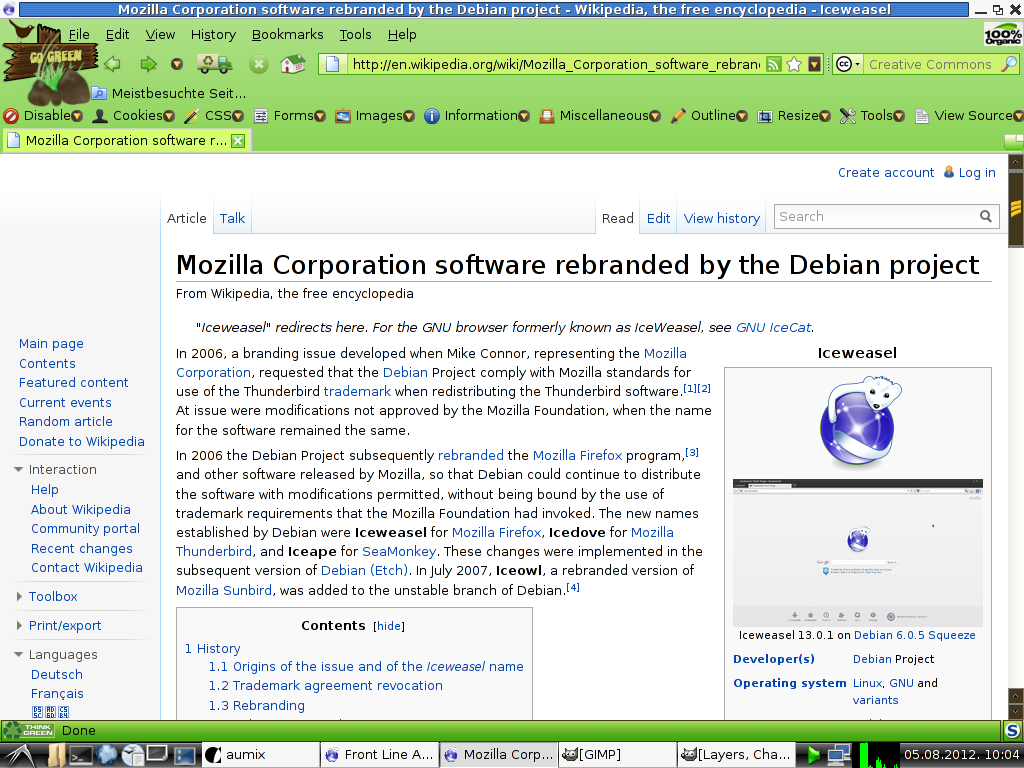
So, here I had a curious case with Go Green, an MPL-licensed theme for which there was no home page anymore, archive.org didn't host the theme's installer, and the only available place is addons.mozilla.org.

There are two ways to fetch the add-on from Mozilla:

One is the easy way, the other way is more complicated, but also
offers more choice.

The ostensibly user-friendly way to installed the latest version of an add-on is thus_

In the instance of the Go Green theme, you can go to

https://addons.mozilla.org/en-US/firefox/addon/go-green/

— in which page there are two obstacles: One is that all of mozilla.org always uses the latest Cascading Style Sheets (CSS) in formatting its pages, and so the older a version of Firefox is, the less able it is in rendering the pages. Fortunately, Firefox has this great option to view the page without CSS (Cascading Style Sheets).
The other is that JavaScript also blocks showing some links, even if the browser is modern.
So, choose to view the page with no styles:

View > Page Style > No Style

In this case, links and elements previously hidden with CSS will be displayed.

Then, to fetch a specific version of an extension, go to see "Complete version history" (you can jump to it using the text find function; link is clickable).

You should reach this address —

https://addons.mozilla.org/en-US/firefox/addon/go-green/versions/

Or, if you know the address of the add-on, just add versions/ to the URL to see all versions of an add-on, page by page (much simpler, I might add).

The All Versions page shows which browser versions the extension is compatible with, so the best bet is to choose the latest version of the extension that is good for a browser version that matches the prescribed version span.

At the section of a desired extension version, there's a "Continue to Download" link. The link is not clickable, but you can drag it into a new tab, or into the existing tab's widget to cause Firefox to resolve the URL.

In the Go Green theme's case, this will actually open the "roadblock" page, with this address for the page:

https://addons.mozilla.org/en-US/firefox/addon/go-green/contribute/roadblock/?src=search&version=1.25

Since you're using IceWeasel or IceCat, you might still be shut out by JavaScript from downloading an extension, with no download button in sight. This is reasonable, as some extensions won't work in Linux, but the script at mozilla.org is not always able to tell exactly that the user is actually running a compatible browser.

When installing extensions made for an operating system different than Linux, then install these at your own risk. It may be easier with themes, but some complex extensions require that you only install the one made for your operating system, especially if it's also been made available for the OS. I've seen this happen with the DOM Inspector extension, which is made by Mozilla, has been included with Firefox, and is specifically tailored to each specific version of Firefox.

As the roadblock page doesn't show the download link when CSS for it is active, choose to use no styles in the page (if you have so far been dragging the links into the tab widget, then the no styles setting for the tab persists)...

The "Download for Windows" link is placed at its coded position, but is not clickable (probably governed so by JavaScript), so drag it into a new tab and save the extension, or if it's already an xpi, install it.

If the add-on installer's filename has a .jar extension, then the extension can be saved as .xpi or renamed later.

This whole option is then simpler, but might not guarantee that you will be getting the right extension that is made for a browser running in your operating system.

With the Go Green case, the theme has only been made for Windows, but if the browser is compatible, it can also be installed in Linux and for Debian Iceweasel. Case in point:


Click for a bigger image.

Downloading the add-on by name from the Mozilla FTP site

To see if a Linux (or Mac) version of the extension is available, you need to find out the add-on's number at mozilla.org. In some cases it's available already in the extension URL, but I think this nomenclature is being phased out from the web front-end.

If you still don't know what's the number of the addon (if the add-on's address is named and not numbered), you can find it out through its add-on icon or other clues, like links and such. See

View > Page Info > Media

Look for an image, the URL of which matches

/addon_icons/

In that URL, the image's filename starts with a number, like

/13551-64.png

^ 13551 is the number of the add-on (64 is probably the native image width). After that, it's easy to find the add-on via mozilla.org's FTP site:

ftp://ftp.mozilla.org/pub/mozilla.org/addons/13551/

The FTP folder there will then display a list of all release versions of extension or theme installers, which are usually JAR or XPI files. If the installer is a JAR file, and you want to install it for Firefox or Iceweasel, download the extension's installer, rename its extension from .jar to .xpi — and then install it in the browser from the directory it's located in.

And to top it off,

The URL for the Go Green theme's latest installer is this:

http://releases.mozilla.org/pub/mozilla.org/addons/13551/go_green-1.25-fx-win.jar